
Livestream thumbnail ideas
that work live and as replays.

A good livestream thumbnail does two jobs. Before and during the stream, it tells people what is happening and when. Afterwards, as a replay, it has to sell the video like any other thumbnail. Below: 6 original examples, five layouts for scheduled streams, gaming, Q&As, marathons and events, and how to plan for both lives of the image.

See all 6 examples

Livestream thumbnail: a smiling streamer with a headset in a neon room, red LIVE tag, text SAT 8PM and Q&A
Upcoming: the day and time while the stream is scheduled
Examples

6 Livestream thumbnail examples

Every example is an original image generated with Base.Tube: no real people, logos or copied thumbnails. Select one to see the prompt behind it.

  • Upcoming: the day and time while the stream is scheduled
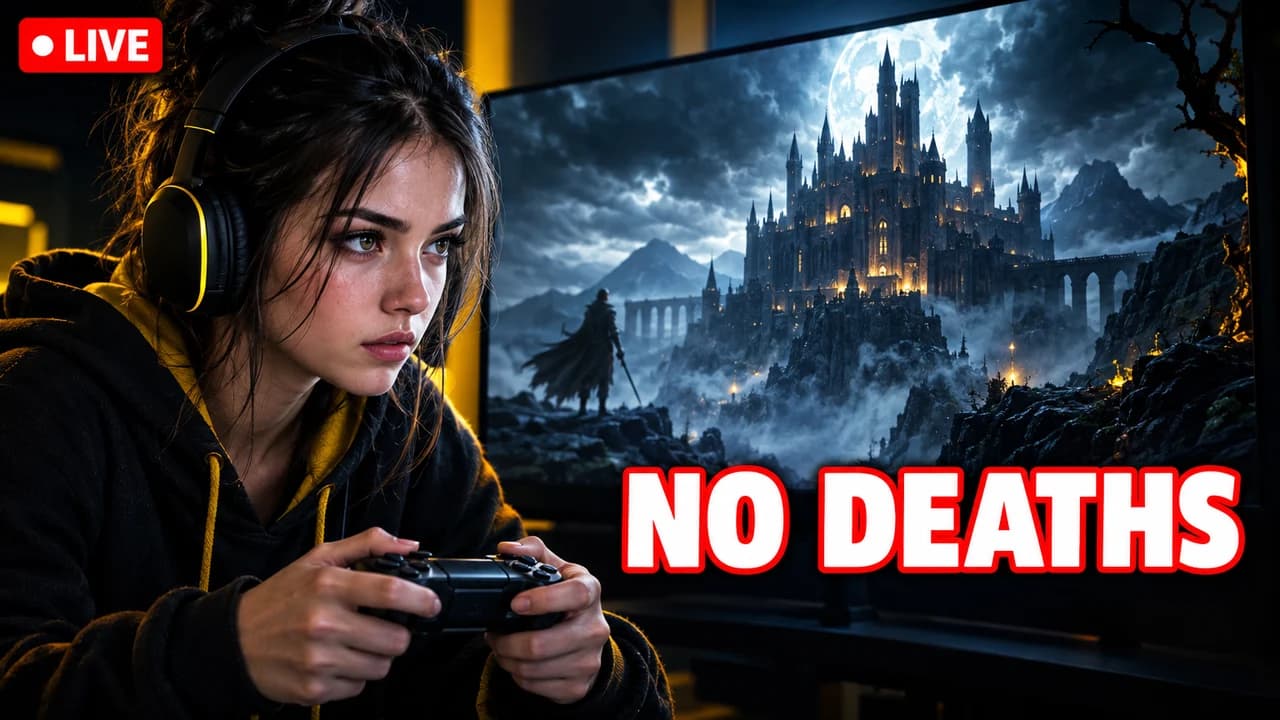
  • Gaming stream: the face, the game and the goal
  • Q&A: the chat bubbles say it all
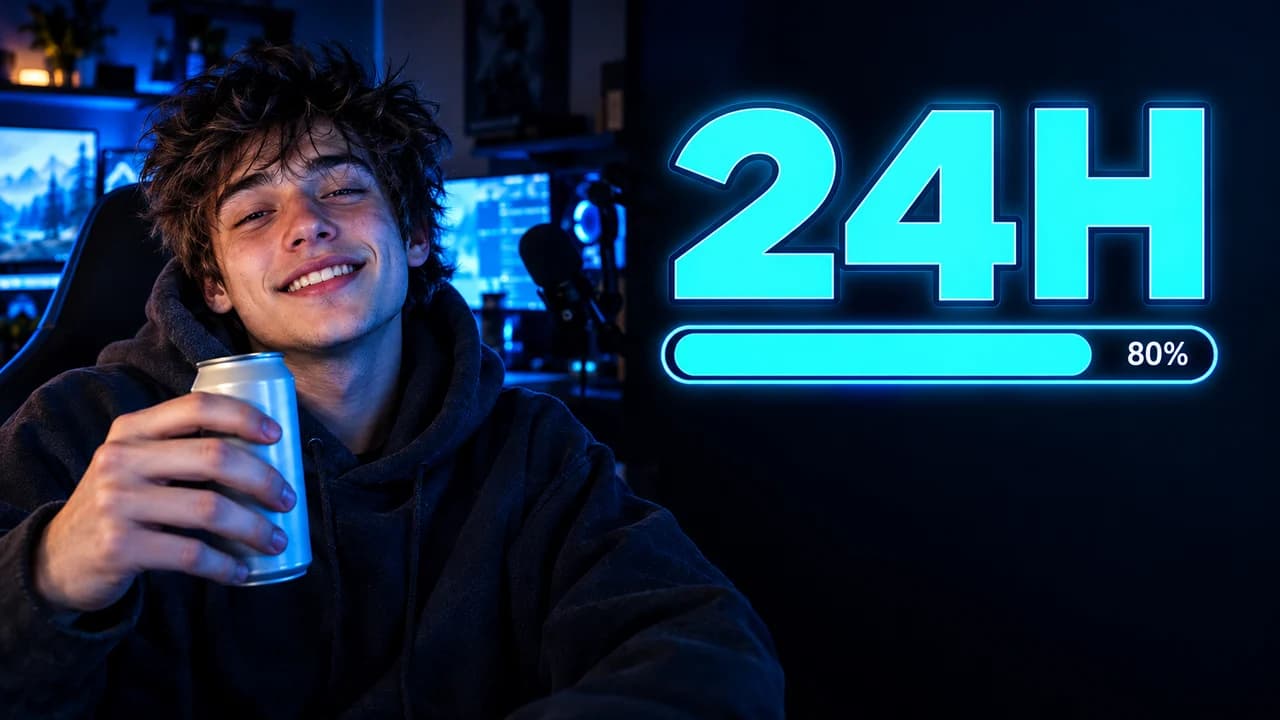
  • Marathon: the hour count is the hook
  • Live event: the stage is the star
  • Gaming stream: the replay version, no LIVE tag
Base.Tube Studio

Make a Livestream thumbnail for your next video.

Describe your video in one line. Base.Tube makes three Livestream thumbnails in your channel’s style, ready to download and test on YouTube.

  • Three ideas for each video
  • Your face and your channel’s style
  • Change anything in plain words
Generate a Livestream-style thumbnail (opens in a new tab)
Style recipe

The Livestream thumbnail style, rule by rule

Palette

  • Live red #FF1E2DThe LIVE tag and the one urgent word
  • Studio black #101114Dark backgrounds and text bands
  • Neon purple #8B5CF6Gaming setups and night-stream glow
  • Signal cyan #22D3EETimes, dates and goals
  • Clean white #FFFFFFMain text with a dark outline
Composition
The streamer's face or setup on one third, the topic or the goal on the other. A small red LIVE tag in a top corner, never in the bottom-right, which YouTube covers with the live badge or the replay length.
Text
One to three words that name what happens: the game, the event, the goal. A date and time only while the stream is upcoming. Heavy sans-serif, white with a dark outline.
Faces & expressions
Energy that matches a live show: an excited grin, a focused stare at the screen, a laugh with the chat. Synthetic people only, never a real streamer's face.
Background
The streaming room with neon light, or a flat dark colour with one glow. Keep it the same across streams so your channel looks consistent.
Props & details
  • A plain red LIVE tag
  • A headset and a microphone on an arm
  • A glowing monitor or a game controller
  • A clock, a countdown or a 24H badge for marathons
  • Chat bubbles for Q&A streams
Layout recipes

Five layouts for Livestream thumbnails

  1. Upcoming

    For a scheduled stream: the streamer, the topic and the date and time, large. Swap the time for a short hook once the stream is over.

    Prompt idea16:9 YouTube thumbnail, scheduled livestream, invented streamer with headset smiling on the left third, dark neon room, small red LIVE tag top left, bold white text "SAT 8PM" and smaller cyan text "Q&A" on the right, bottom-right corner empty, original characters, no logos, no real people

    Generate a Upcoming layout in the Base.Tube Studio (new tab)
  2. Gaming Stream

    The game moment and the streamer's face together, with the goal of the stream as text: a challenge, a rank, a first playthrough.

    Prompt idea16:9 YouTube thumbnail, gaming livestream, invented streamer gripping a controller on the left third, glowing monitor with a fantasy castle scene behind, small red LIVE tag, bold text "NO DEATHS" on the right, bottom-right corner empty, original characters, no logos, no real people

    Generate a Gaming Stream layout in the Base.Tube Studio (new tab)
  3. Q&A

    Just-talking streams: the streamer facing the camera and a few chat bubbles with questions. The text says what people can ask about.

    Prompt idea16:9 YouTube thumbnail, Q&A livestream, invented woman with a podcast mic laughing on the right third, three white chat bubbles with question marks on the left, flat purple background, bold text "ASK ME" on the left, bottom-right corner empty, original characters, no logos, no real people

    Generate a Q&A layout in the Base.Tube Studio (new tab)
  4. Marathon

    Long streams, charity streams and challenges: a big hour count or a goal bar, and a tired but happy streamer.

    Prompt idea16:9 YouTube thumbnail, 24 hour livestream marathon, invented streamer with messy hair and an energy drink grinning on the left third, huge cyan "24H" badge and a glowing goal bar on the right, dark room, bottom-right corner empty, original characters, no logos, no real people

    Generate a Marathon layout in the Base.Tube Studio (new tab)
  5. Live Event

    Launches, watch parties and live performances: the stage or the event, a countdown and the red LIVE tag. The event is the star, not the face.

    Prompt idea16:9 YouTube thumbnail, live event, a small stage with a glowing screen and a crowd silhouette, countdown reading 00:10, red LIVE tag top left, bold white text "LAUNCH NIGHT" on the right, bottom-right corner empty, original characters, no logos, no real people

    Generate a Live Event layout in the Base.Tube Studio (new tab)

A livestream thumbnail has two lives

Most thumbnails are made once. A livestream thumbnail, like any YouTube live thumbnail, lives twice. First, it announces the stream: people see it on your channel and in their subscriptions before you go live and while you are live. Then, once the stream ends, it becomes the thumbnail of a long replay that has to compete with every other video.

Plan for both. The upcoming version says what and when. The replay version says what happened.

Before and during: what and when

People decide to show up to a stream for one of three reasons: the topic, the goal or the person. Put one of them in big letters. "Q&A", "NO DEATHS", "24H". Add the day and time while the stream is scheduled, and a small red LIVE tag in a top corner. Keep it short: the stream title can carry the details.

After: sell the replay

The day after, "SAT 8PM" means nothing. Go back into YouTube Studio and replace the thumbnail with the best moment of the stream: the boss you beat, the question that made everyone laugh, the goal bar at 100 percent. Remove the LIVE tag and the date. Your replay now looks like a normal video and can be recommended like one.

Five layouts for streams

  • Upcoming: the streamer, the topic and the day and time.
  • Gaming stream: the face, the game on a monitor and the goal.
  • Q&A: the streamer and a few chat bubbles with questions.
  • Marathon: a big hour count or a goal bar.
  • Live event: the stage or the screen, a countdown and the LIVE tag.

Keep a stream look

Regular viewers come back every week. Make your stream thumbnails easy to spot: the same background, the same neon colours, the same position for your face and the LIVE tag. Change only the topic, the goal and the time. The YouTube thumbnail backgrounds guide has ideas for backgrounds that stay out of the way.

Text and corners

Use one to three words in a heavy font with a dark outline; the YouTube thumbnail fonts guide lists free fonts that read when small. Keep the bottom-right corner clear: YouTube shows the live badge there during the stream and the length of the replay afterwards.

Size and the final check

A YouTube live stream uses a normal 16:9 thumbnail; the YouTube thumbnail size guide has the numbers. Check both versions, upcoming and replay, next to other videos in the YouTube thumbnail preview, and compare options with the thumbnail tester. If you also run a video podcast, the podcast thumbnail ideas page has layouts for episodes.

Checklist

Do this, not that

Do

  • Say what happens in the stream, whether the game, the goal or the topic.
  • Show the date and time while the stream is upcoming.
  • Update the thumbnail after the stream so the replay sells itself.
  • Keep the same frame and colours across streams.
  • Leave the bottom-right corner clear for the live badge and replay length.

Don't

  • Don't leave an old date on a replay thumbnail.
  • Don't use a real streamer's face or copy their overlay.
  • Don't cover the image with your schedule, socials and sponsors.
  • Don't promise a guest or a giveaway that does not happen.
FAQ

Questions about Livestream thumbnails

What makes a good livestream thumbnail?
It tells people what happens in the stream, at a glance. A face with energy, the topic or the goal in one to three words, and a small red LIVE tag. While the stream is upcoming, add the day and time. After the stream, replace the time with a hook from the best moment, so the replay works like a normal video.
How do I add a thumbnail to a YouTube live stream?
When you schedule or set up a stream in YouTube Studio, the stream details include a thumbnail field where you can upload your own image, just like for a regular video. Custom thumbnails need a verified YouTube account. You can change it again after the stream to update the replay.
What size is a stream thumbnail?
On YouTube, a live stream uses the same thumbnail as a regular video: 16:9, with 1280 × 720 pixels as a common size. The YouTube thumbnail size guide has the current file size and format limits. Keep the bottom-right corner clear, where YouTube shows the live badge or the replay length.
Should I change my thumbnail after the stream ends?
Yes. An "upcoming" thumbnail with a date stops making sense the day after. Pick the best moment of the stream, such as the boss win, the funniest question or the goal reached, and make it the new thumbnail. The replay then competes like any other video in search and recommendations.
Is there a livestream thumbnail template I can reuse?
Yes: choose one of the five layouts on this page and keep it for every stream. Fix the position of your face, the LIVE tag and the text, and only change the topic and the time. Regular viewers then recognise your next stream instantly.
Is there a free livestream thumbnail maker?
Any free image editor works with the layouts on this page. If you would rather describe the stream and pick from several options, the Base.Tube Studio generates livestream thumbnails in these styles with synthetic people. Choose a layout, describe the stream and keep the version you like.
Base.Tube Studio

Make a Livestream thumbnail
for your next video.

Describe your video, pick a layout, and generate options in the Base.Tube Studio. Once the video is live, connect your channel to see its real impressions and click-through rate.