







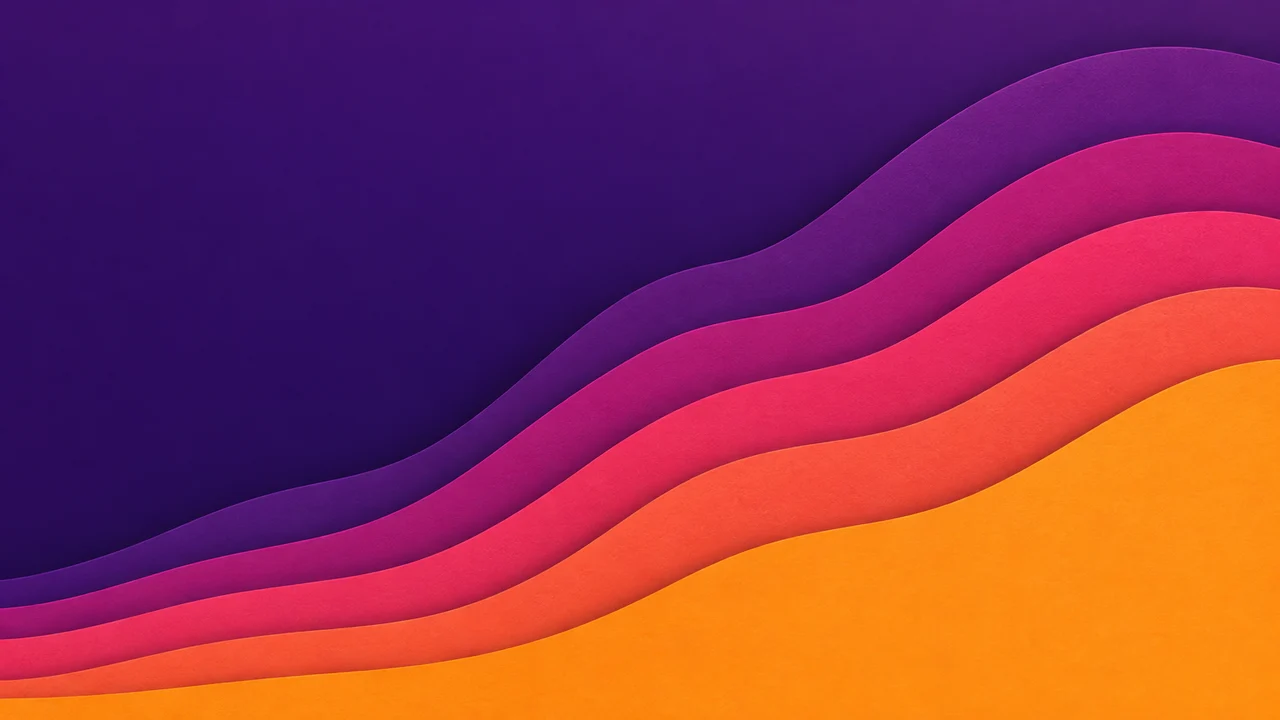
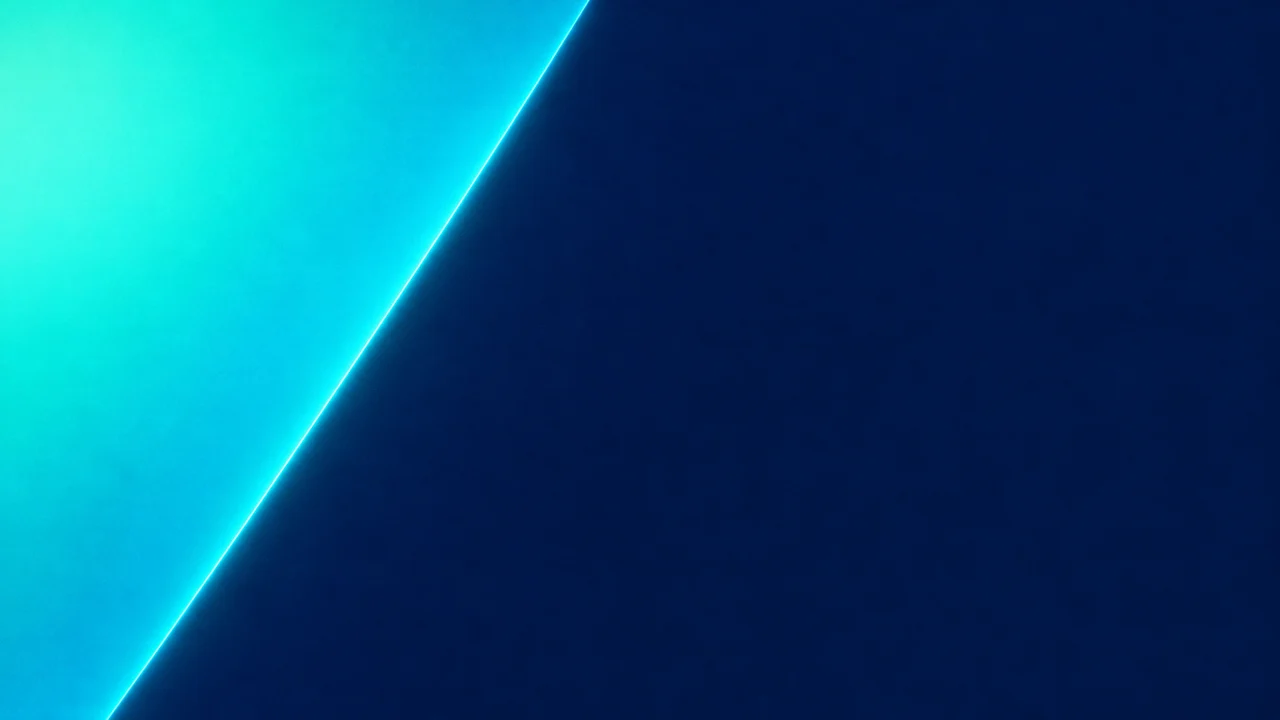
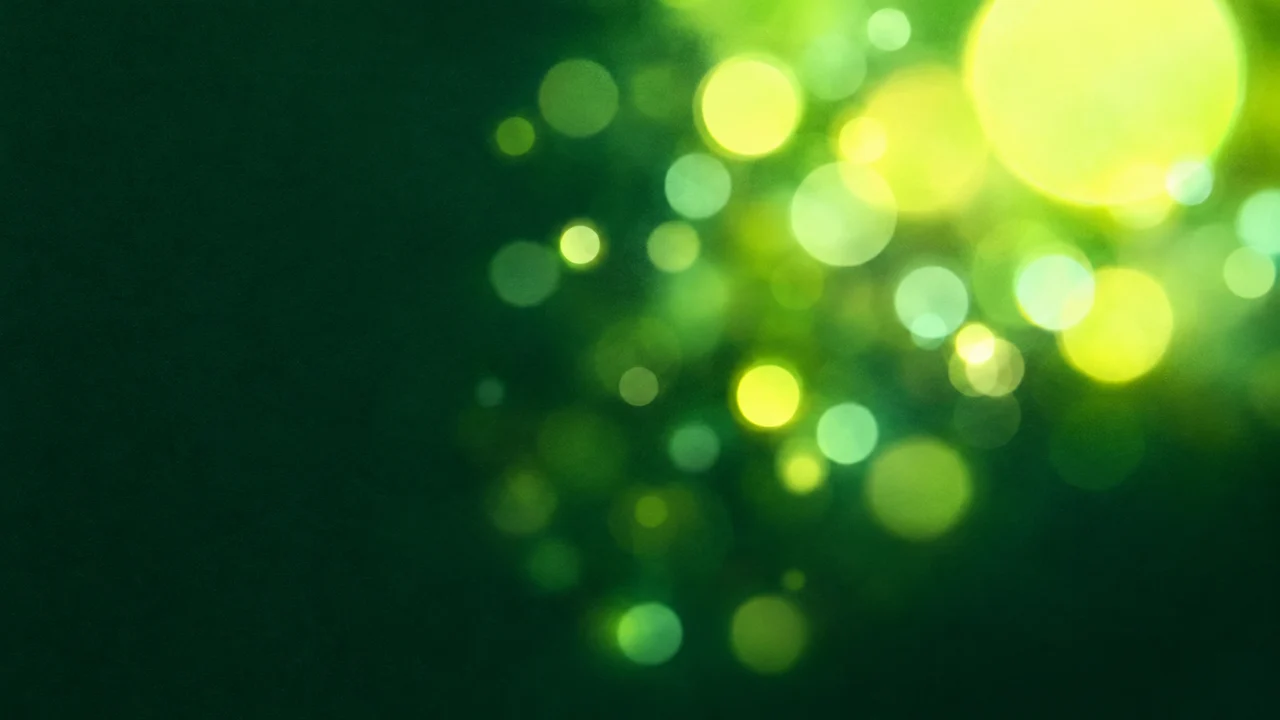
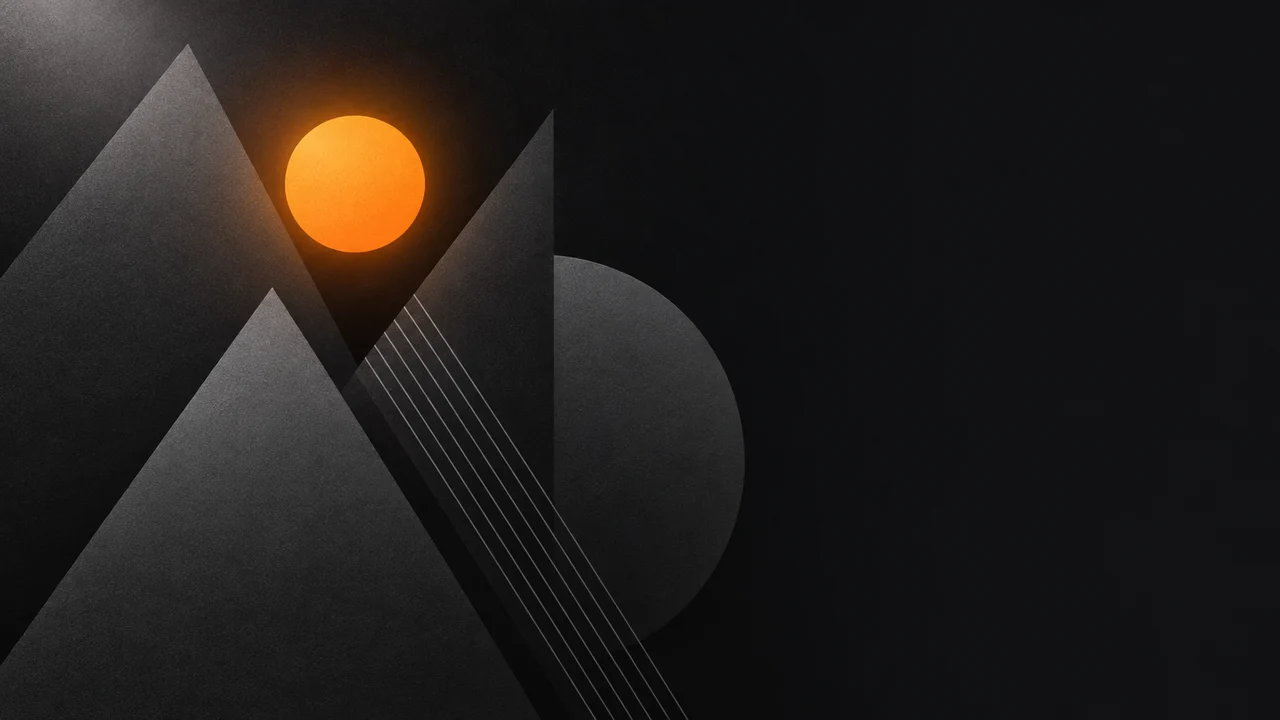
Choose a background that fits your niche
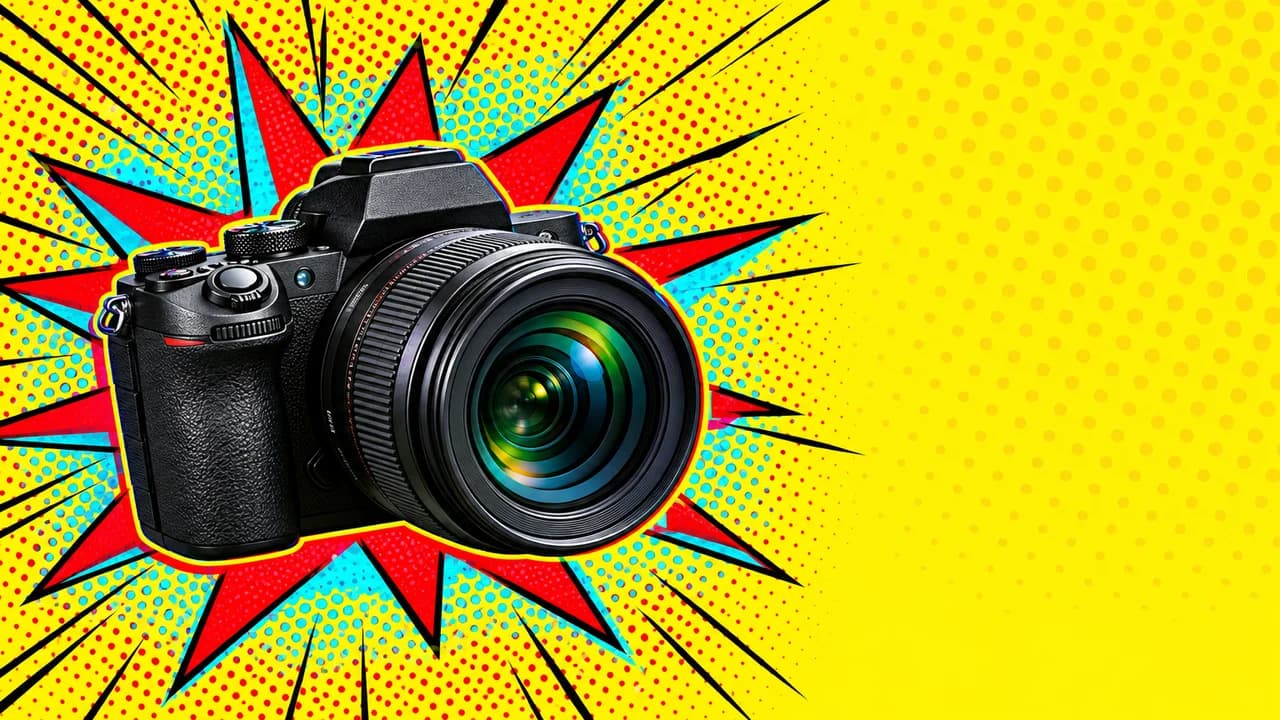
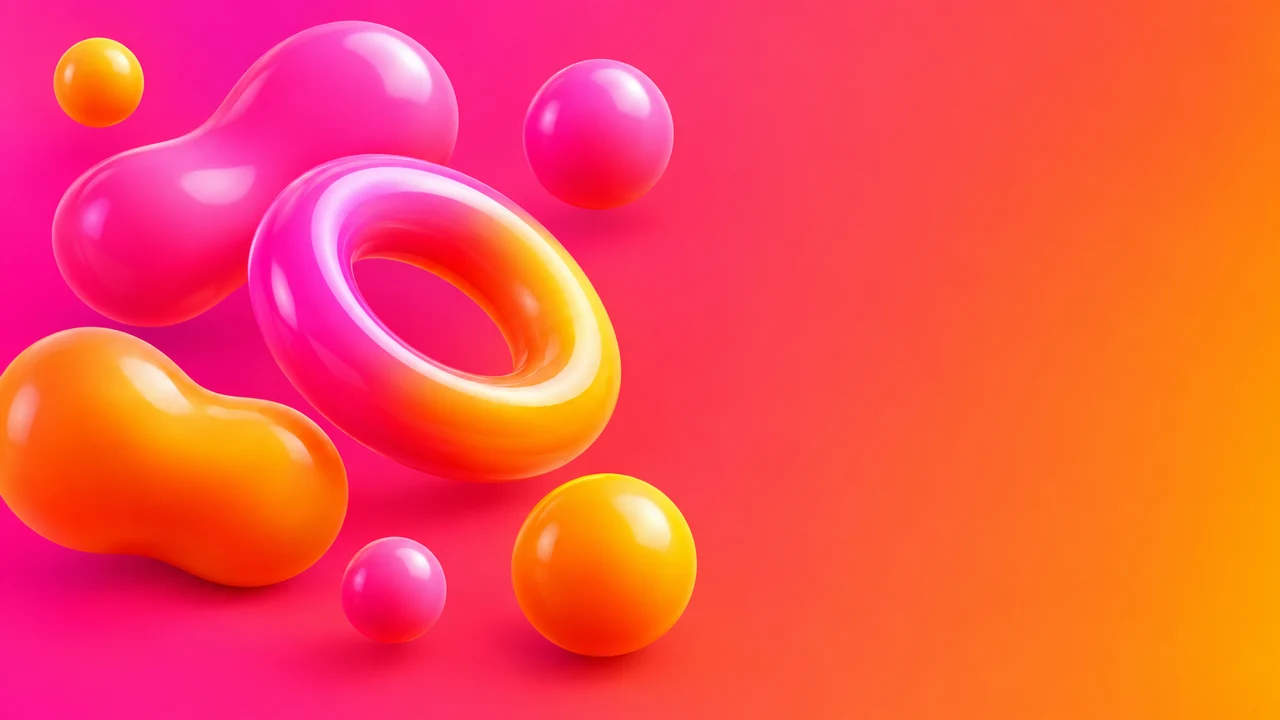
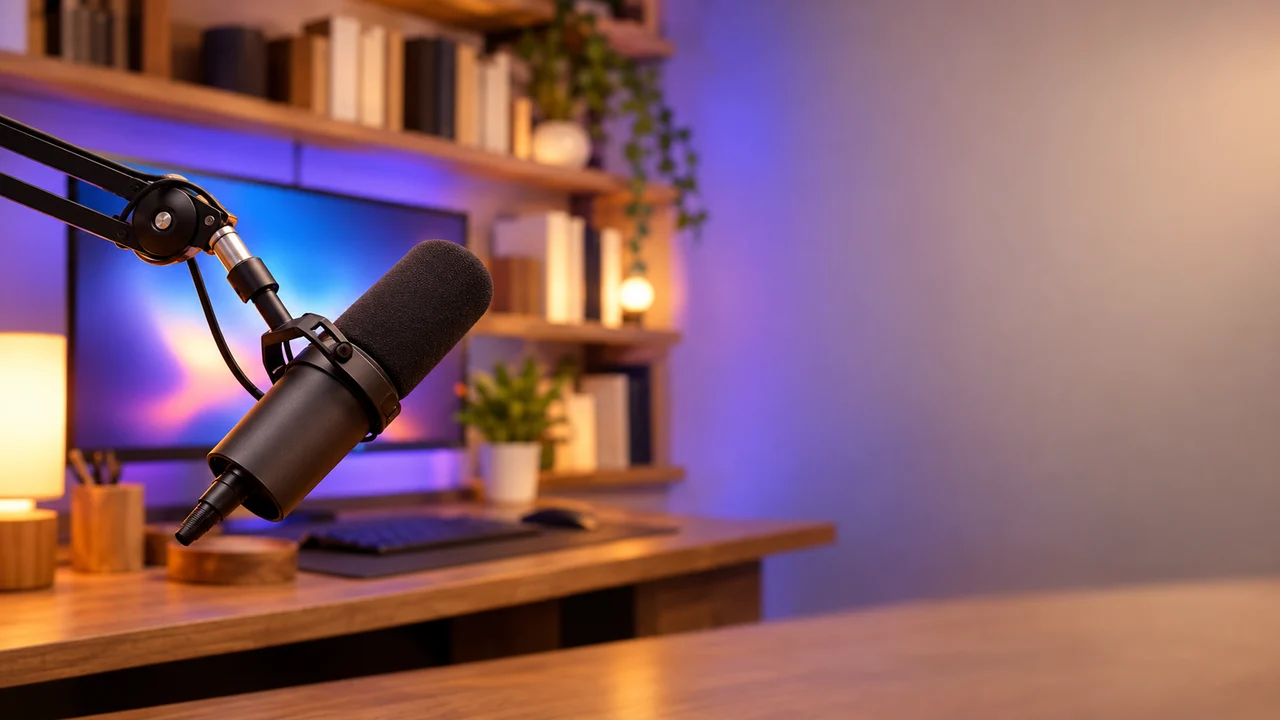
The background sets the mood of a thumbnail before anyone reads a word. Pick it for the feeling of the video, not only its topic.
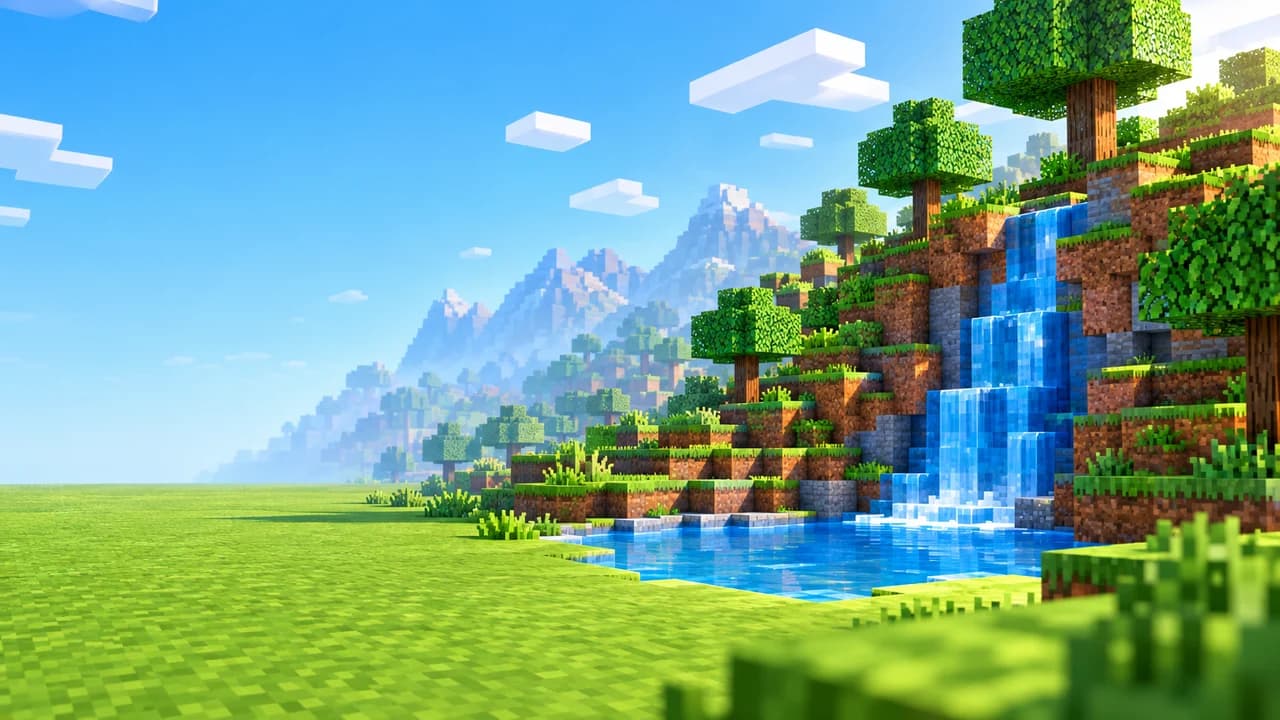
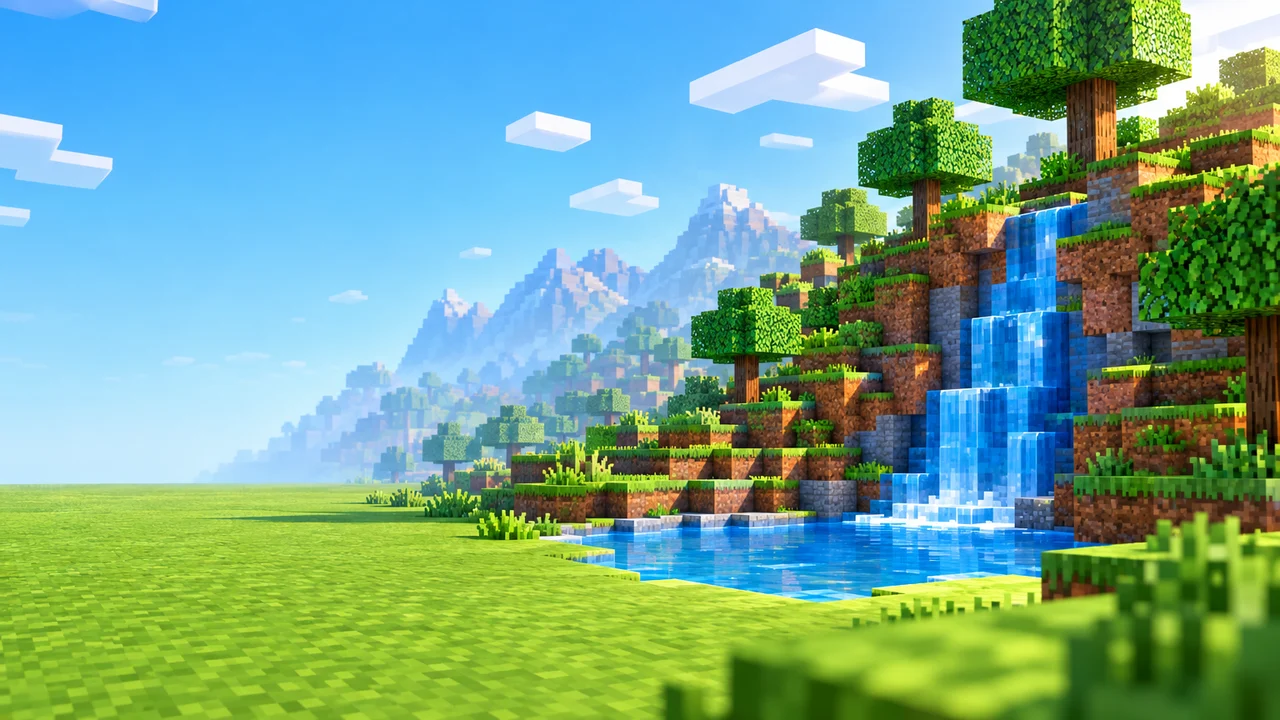
- Gaming: a game-like scene tells viewers the genre at a glance. The blocky voxel landscape fits Minecraft builds and survival series. The cartoon island fits Fortnite and other battle royale videos. For finished examples, see our Minecraft thumbnail ideas and Fortnite thumbnail ideas.
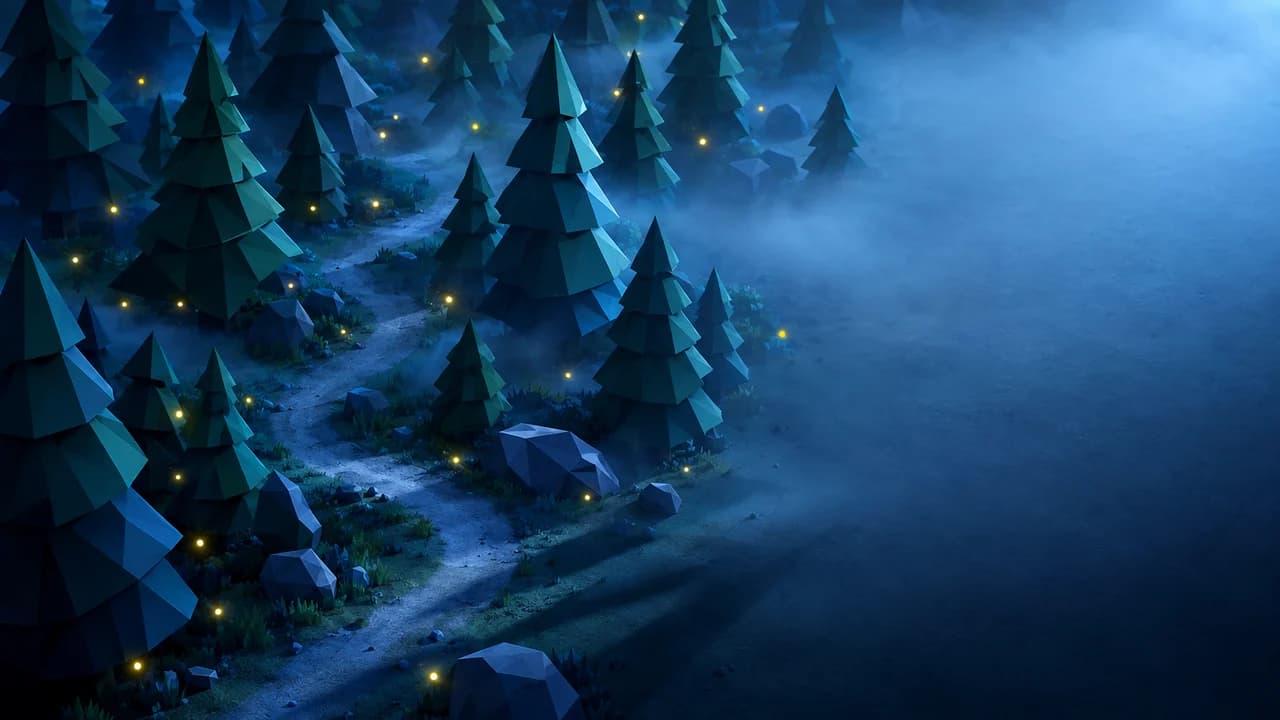
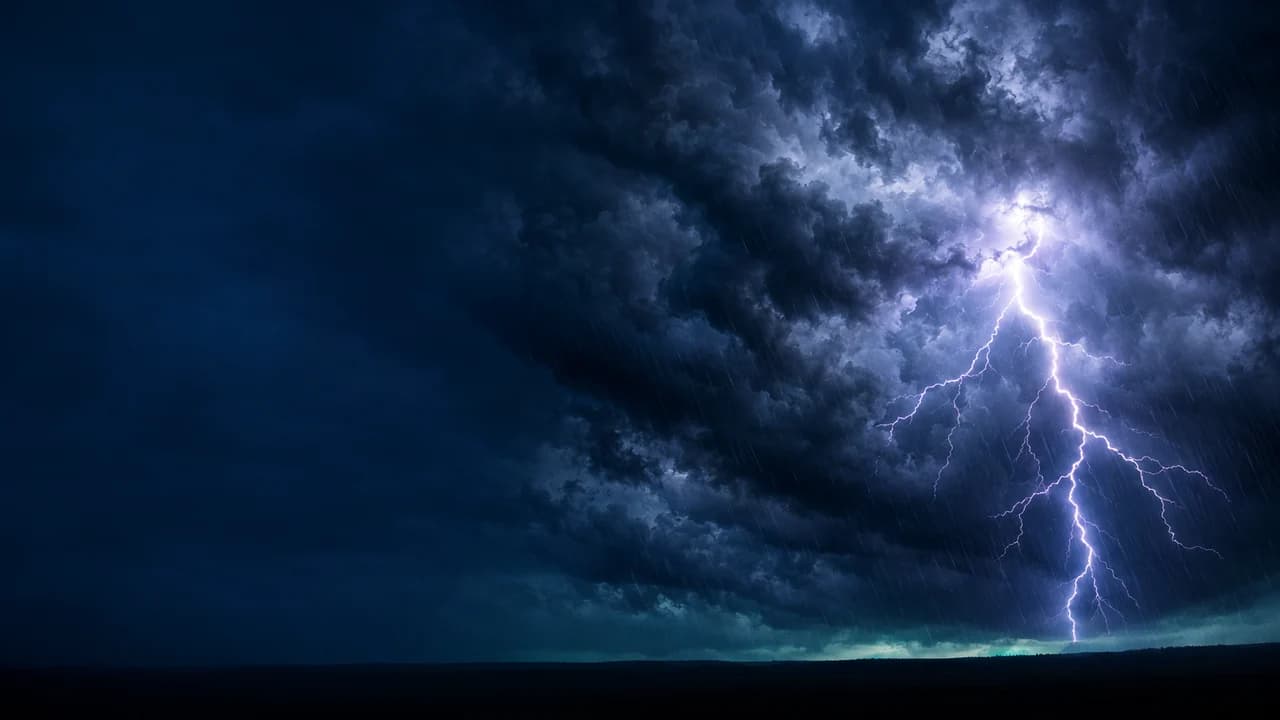
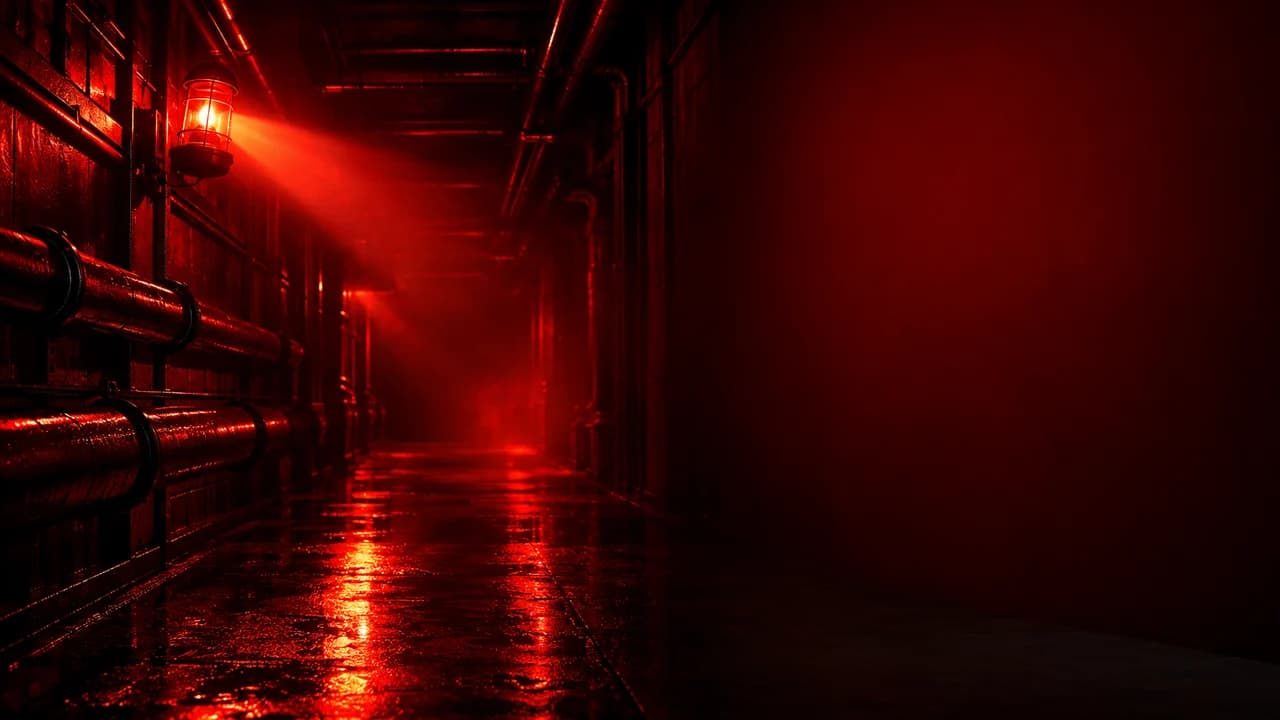
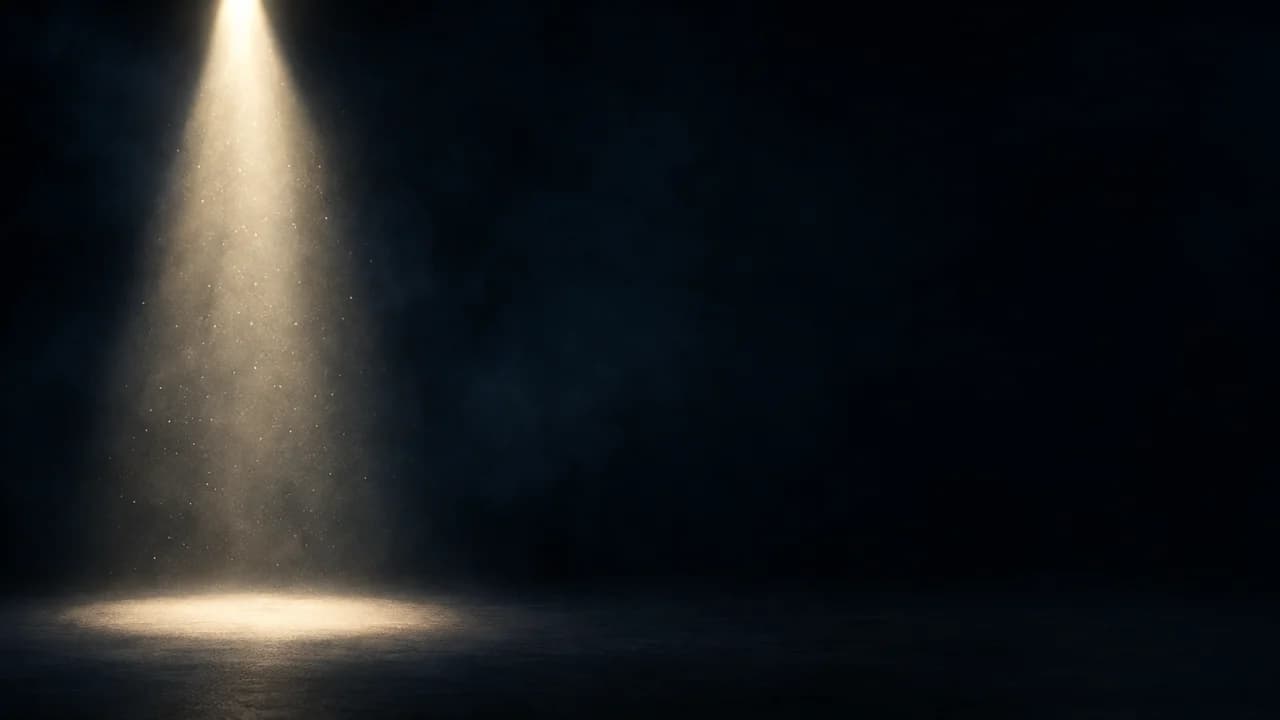
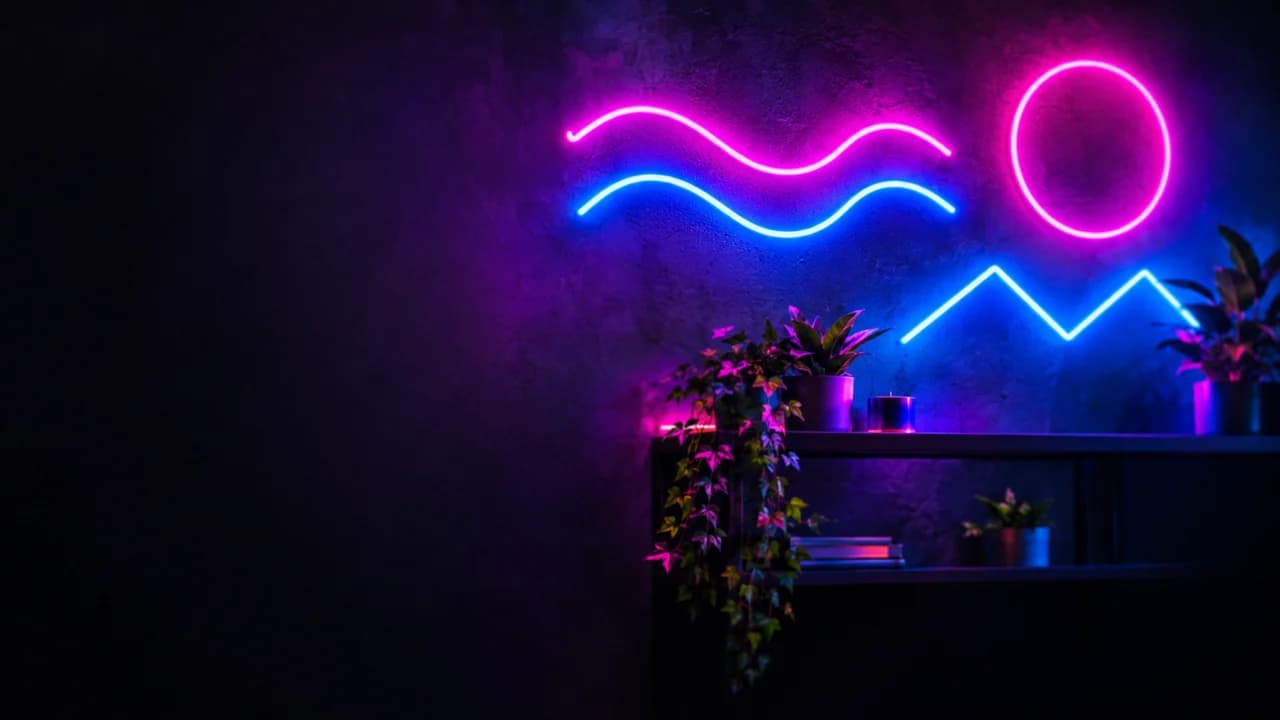
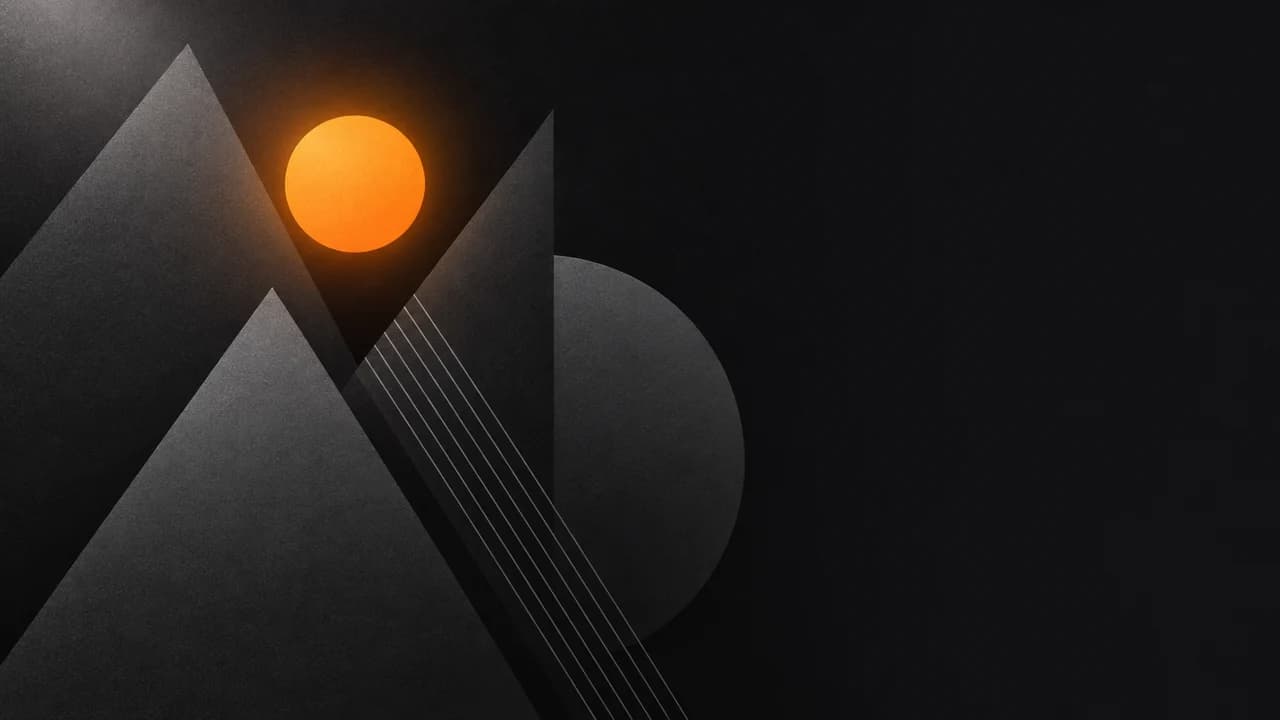
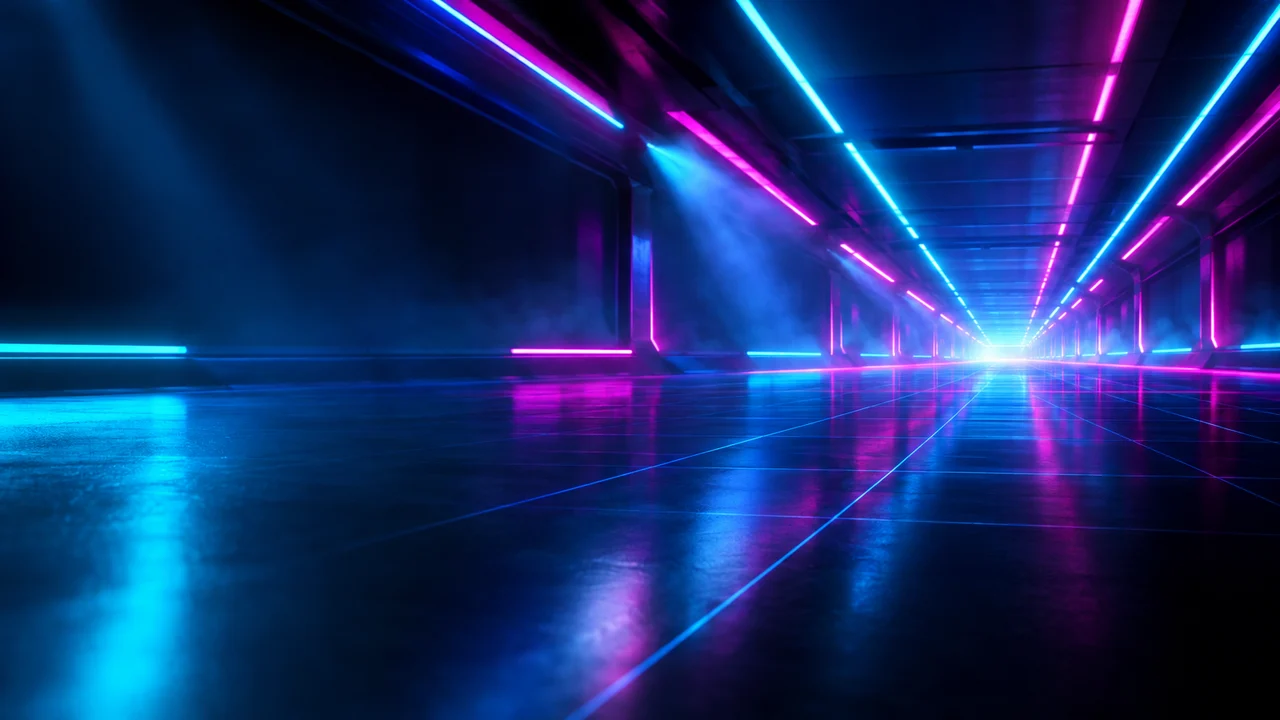
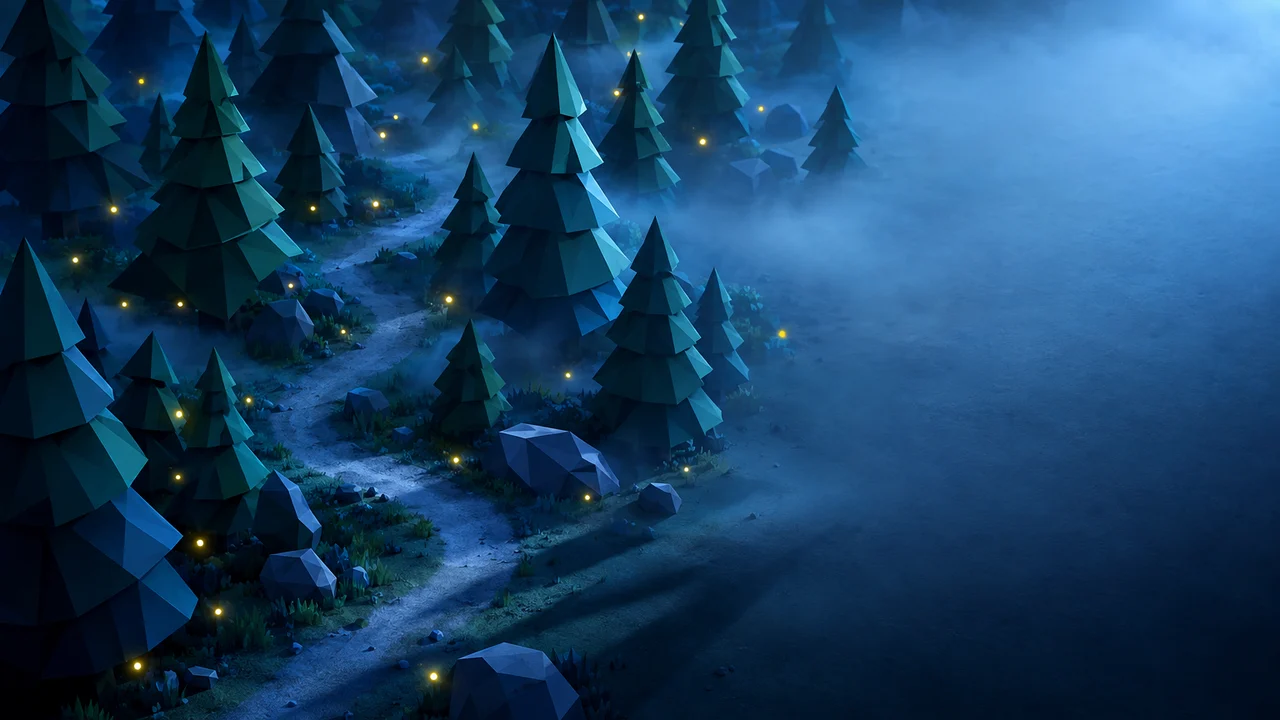
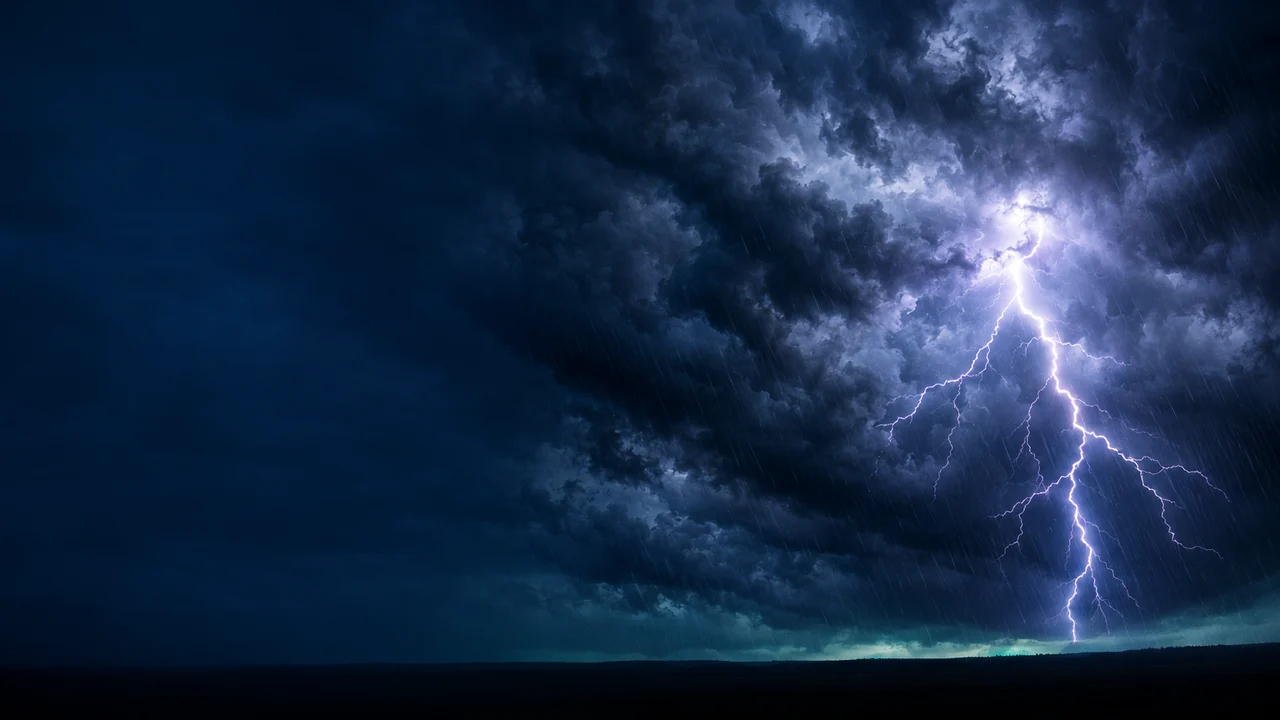
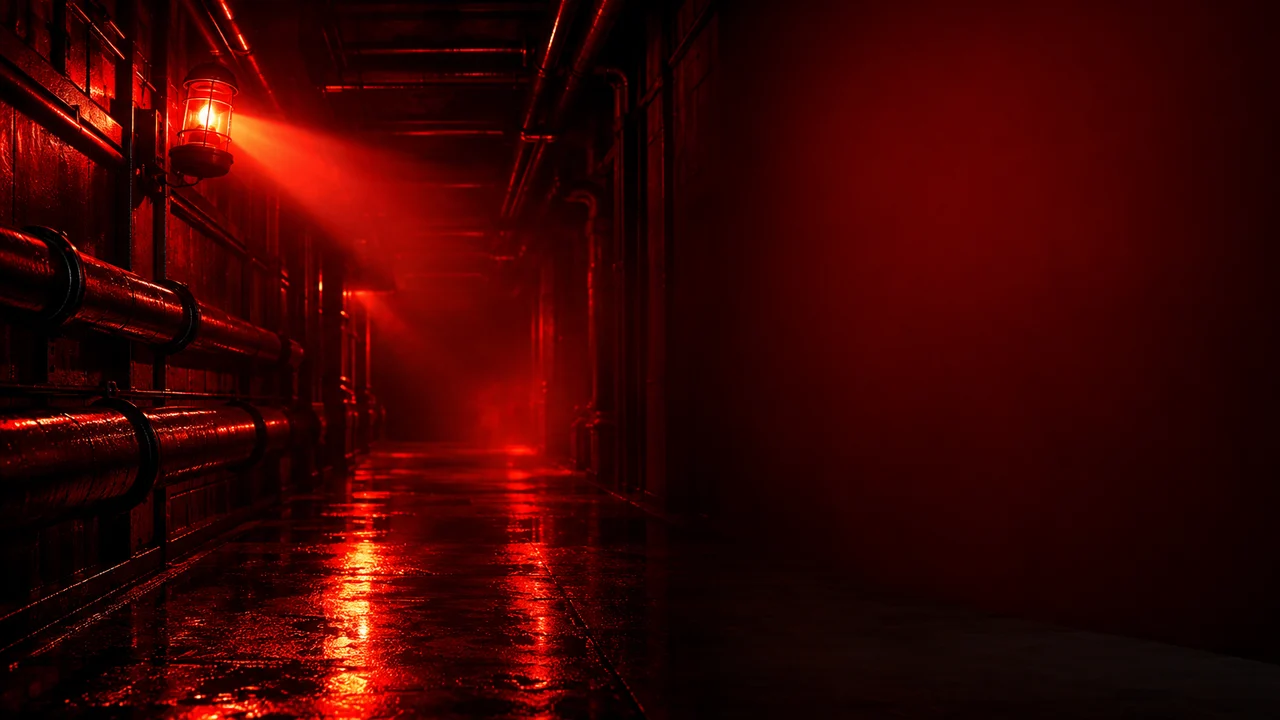
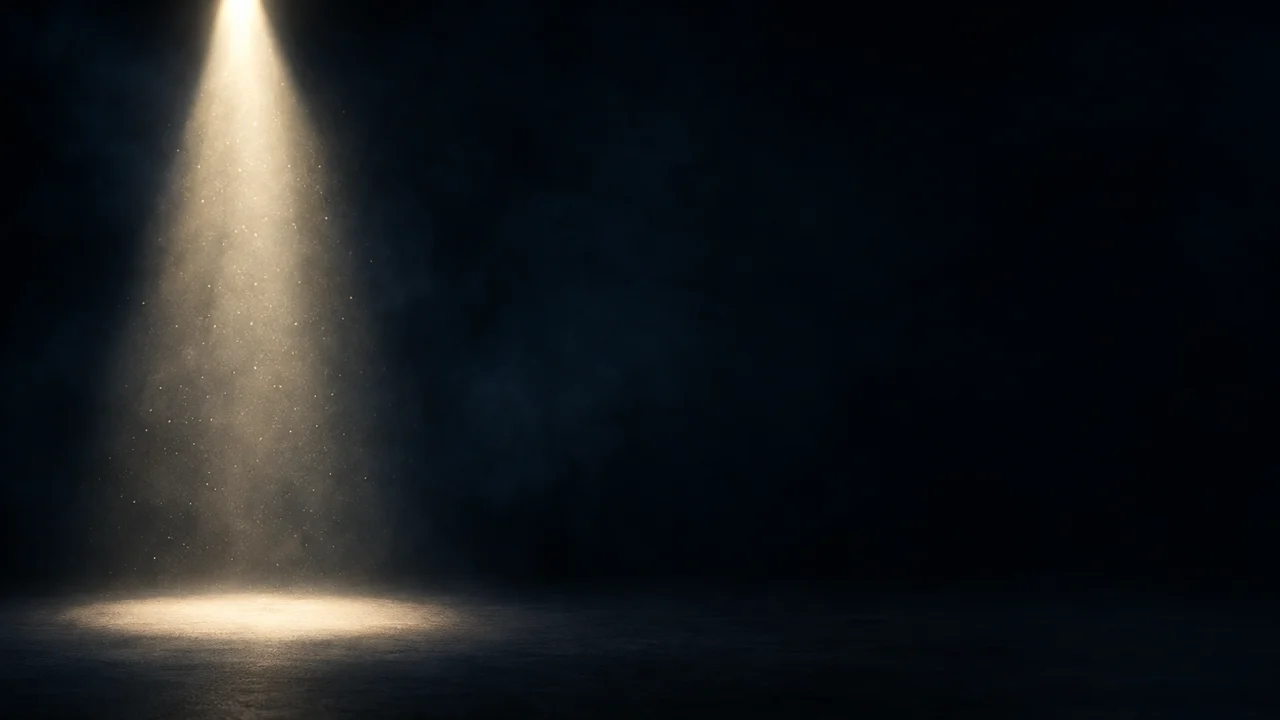
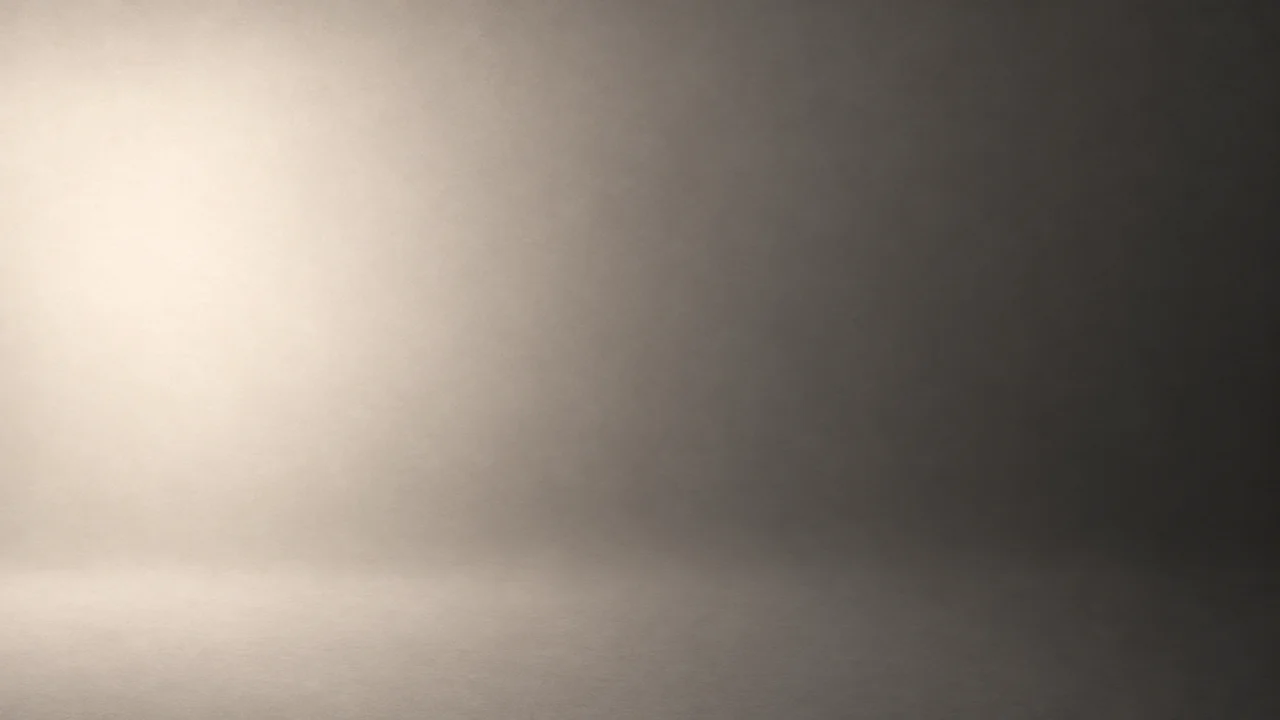
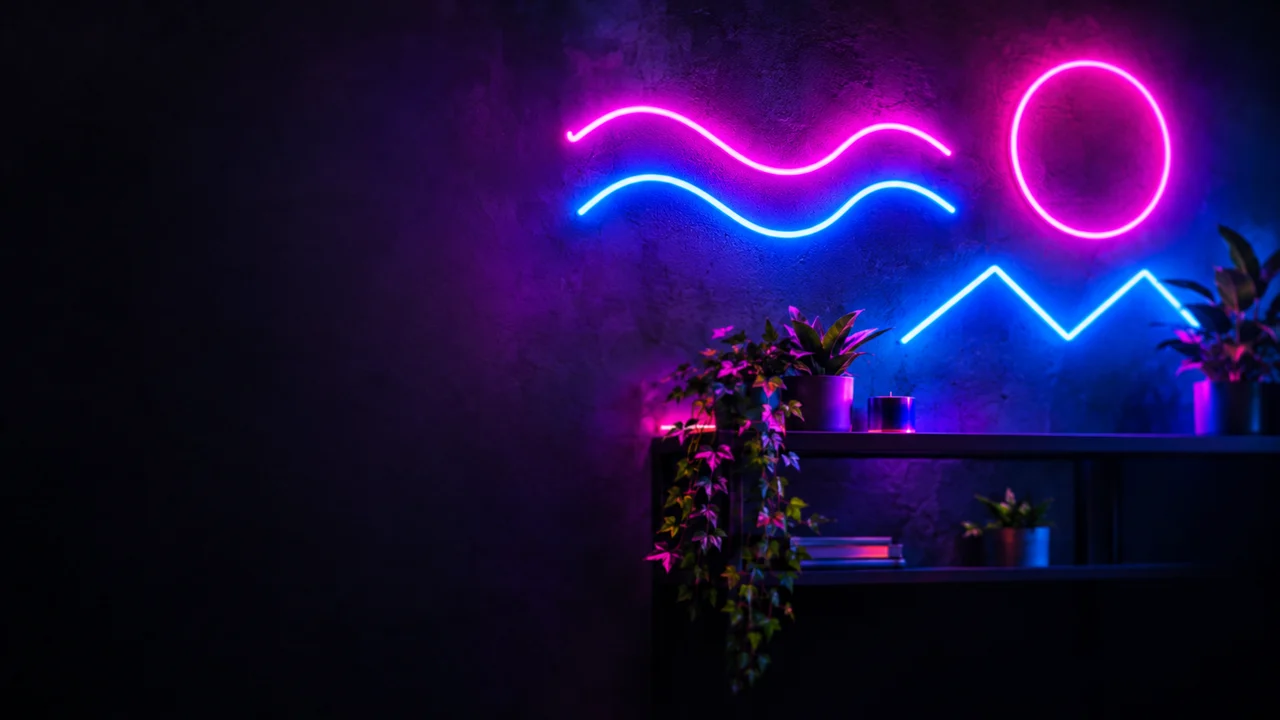
- Stories, mysteries and warnings: a dark background with one strong light.
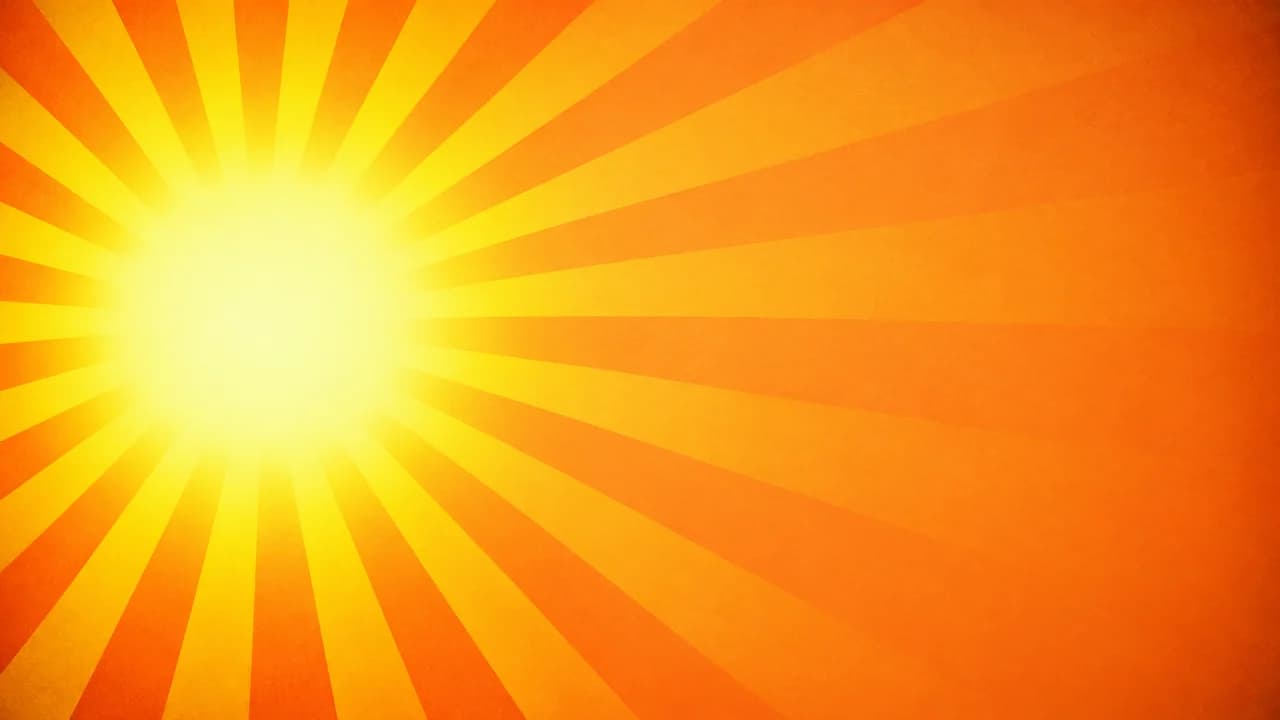
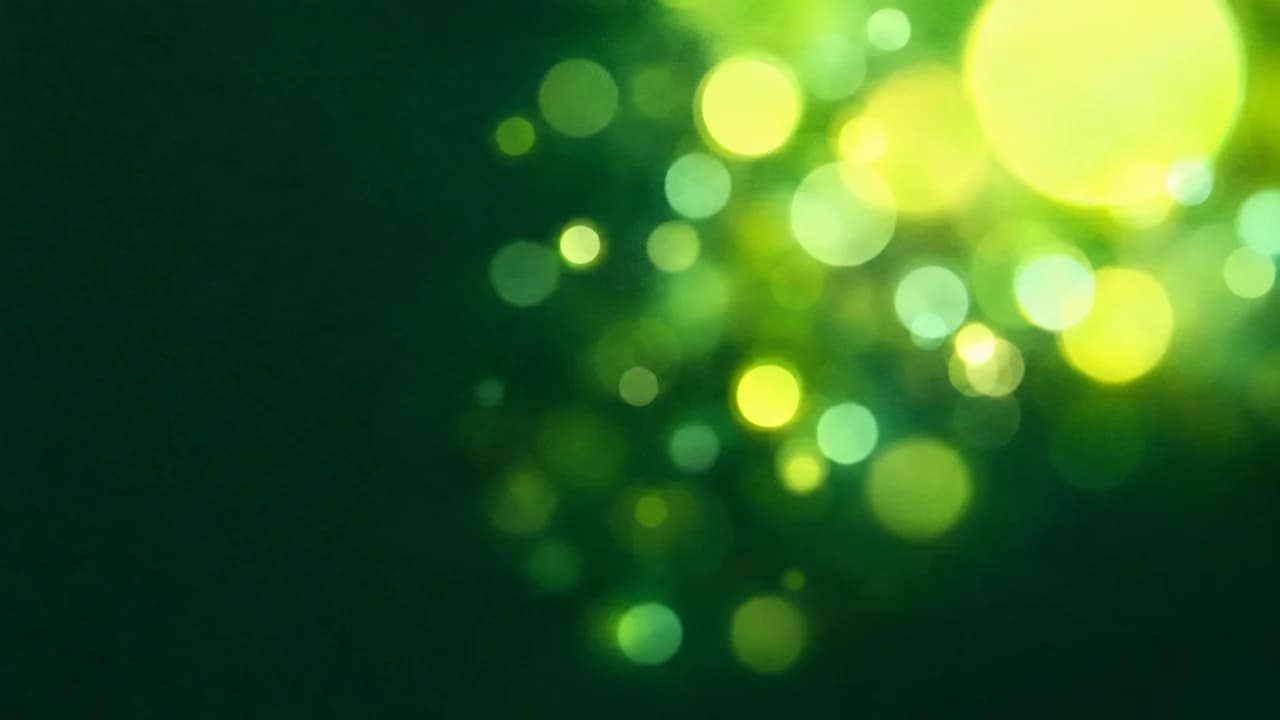
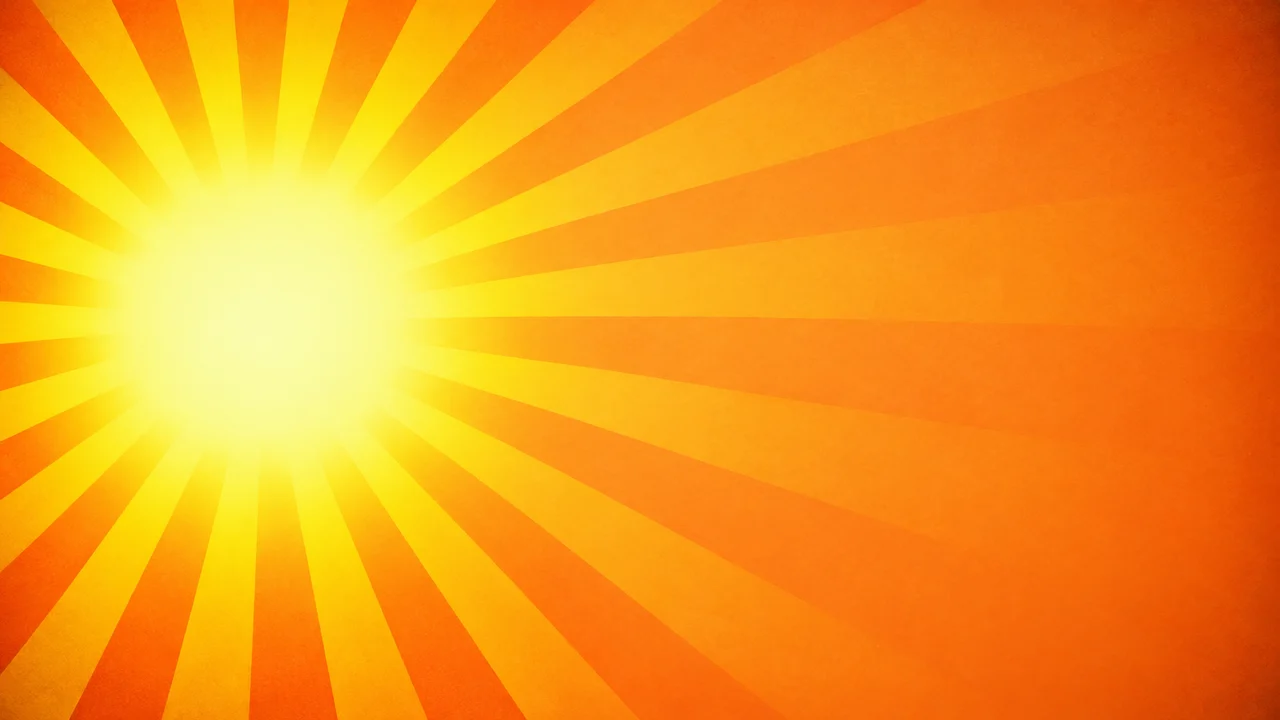
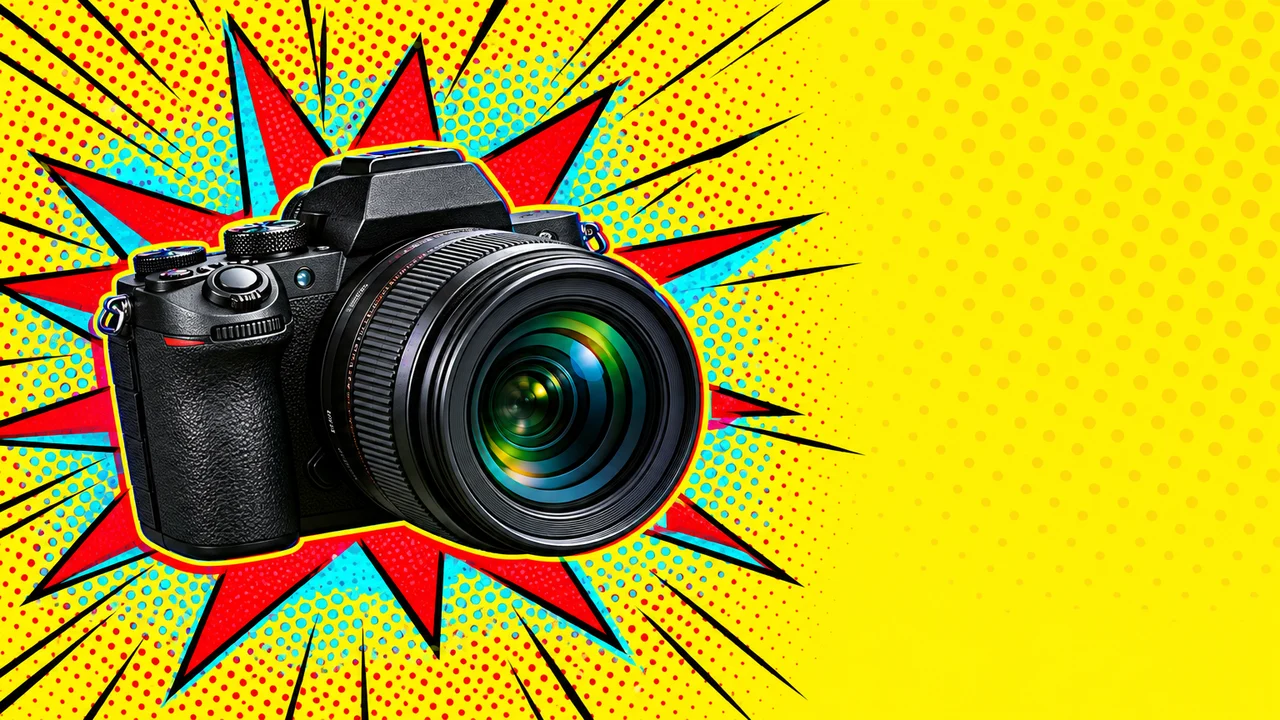
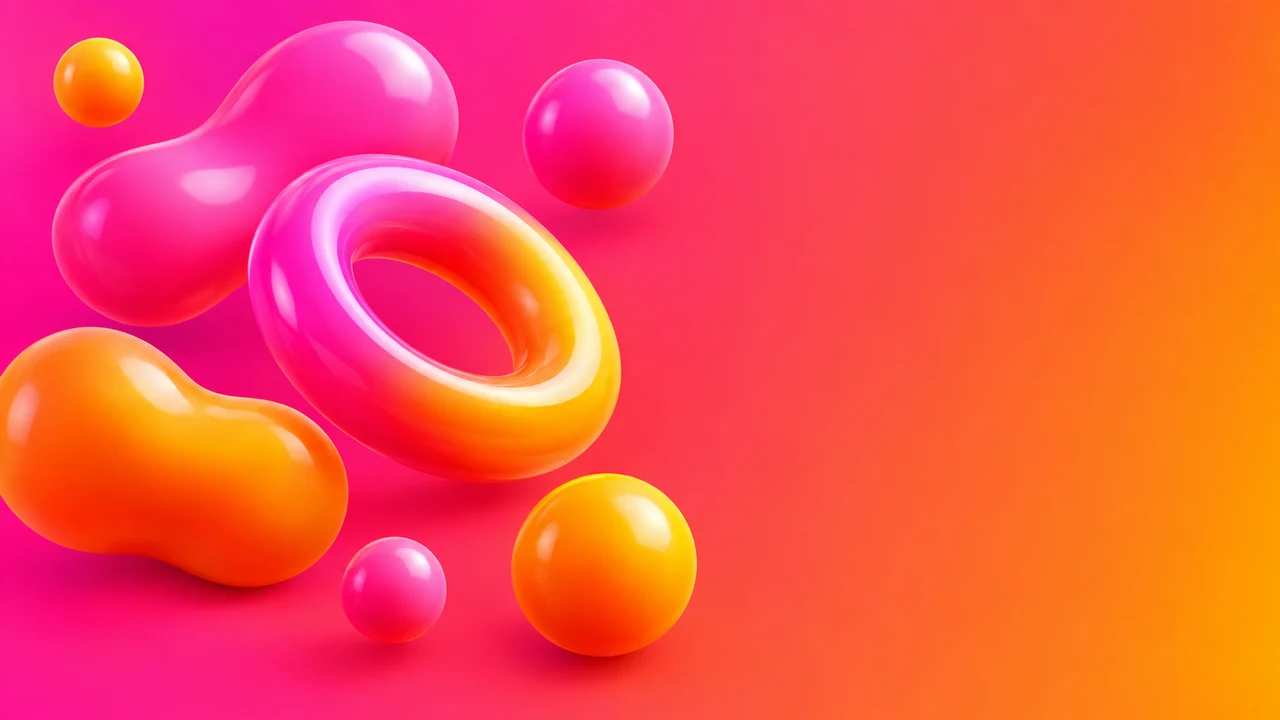
- Challenges, reactions and family videos: bright colours.
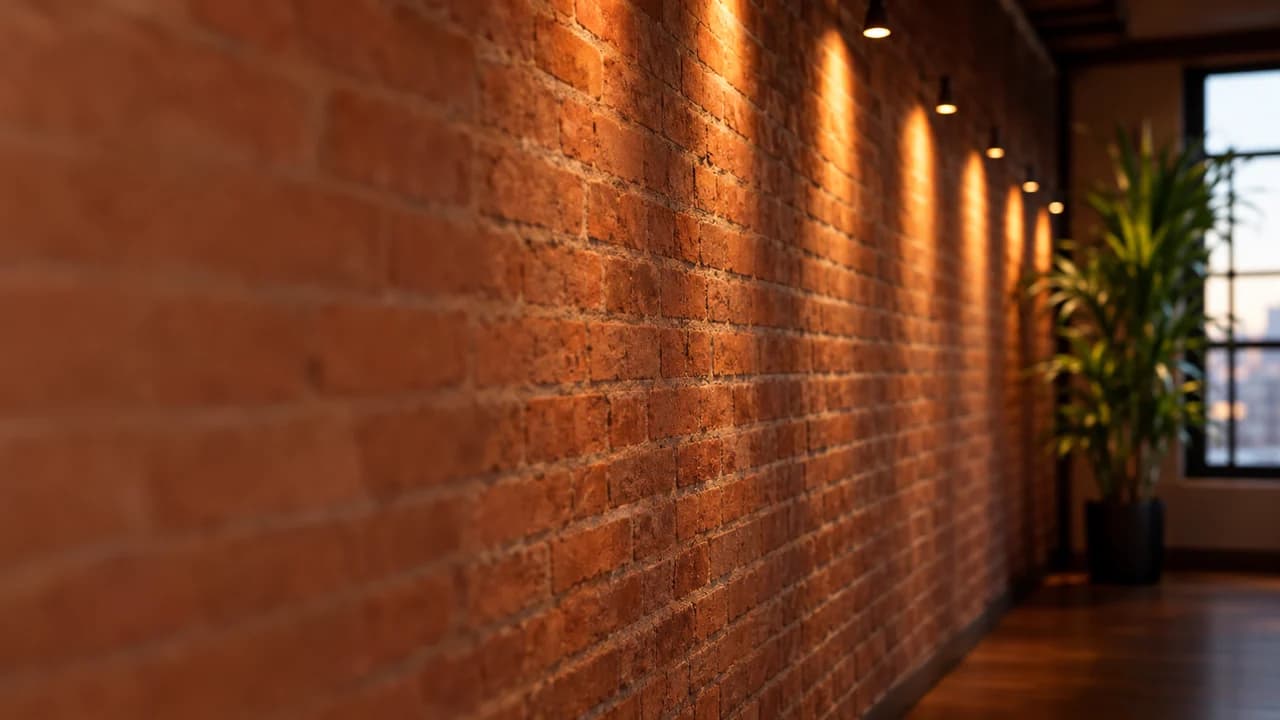
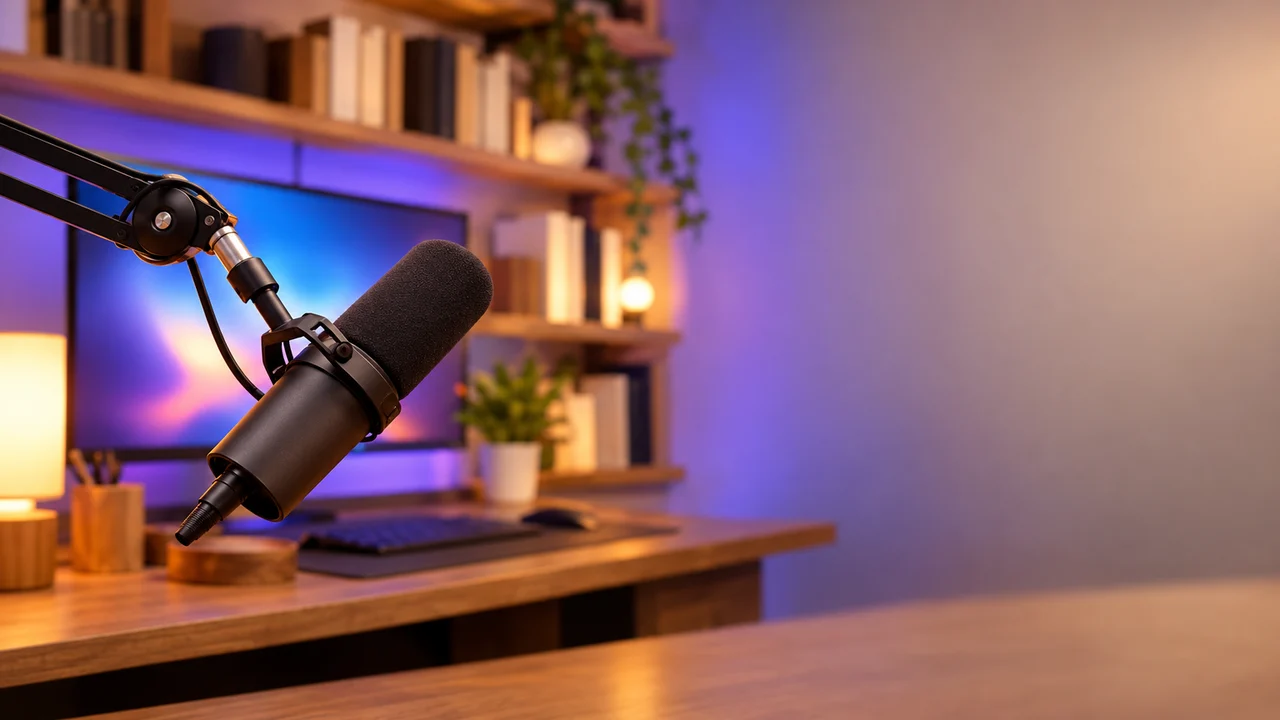
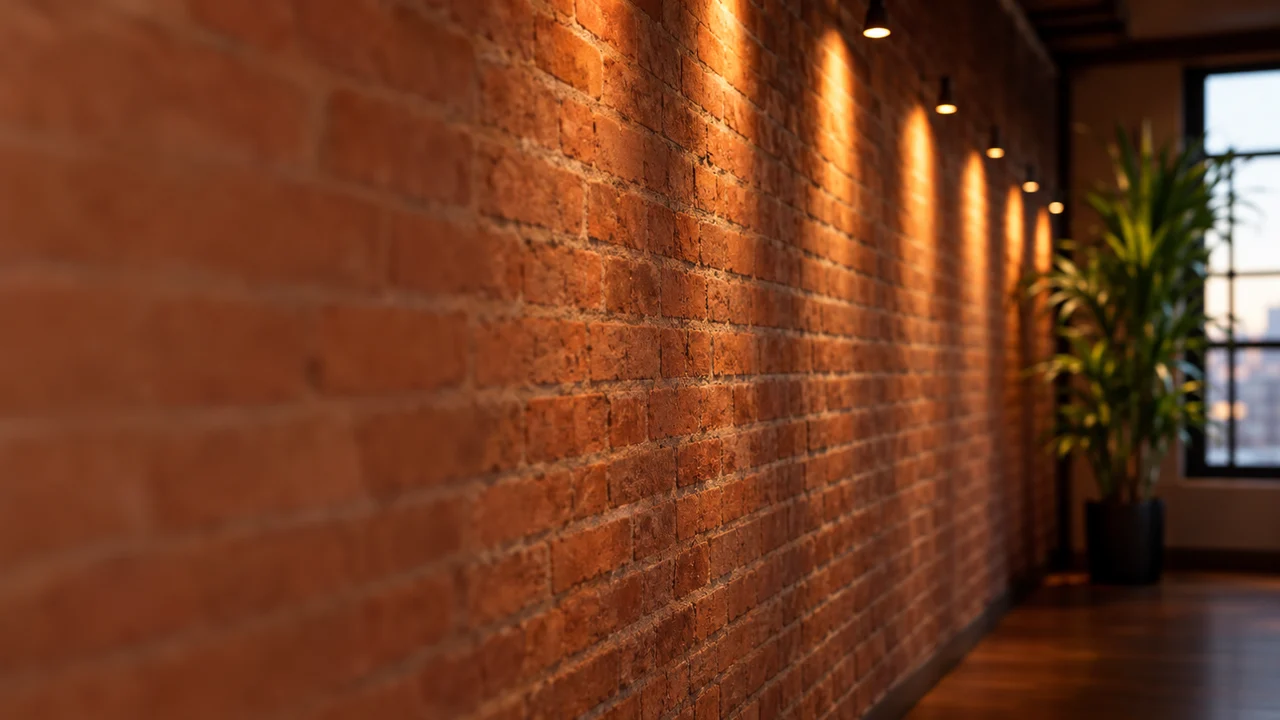
- Podcasts, interviews and tutorials: a quiet studio, desk or wall.
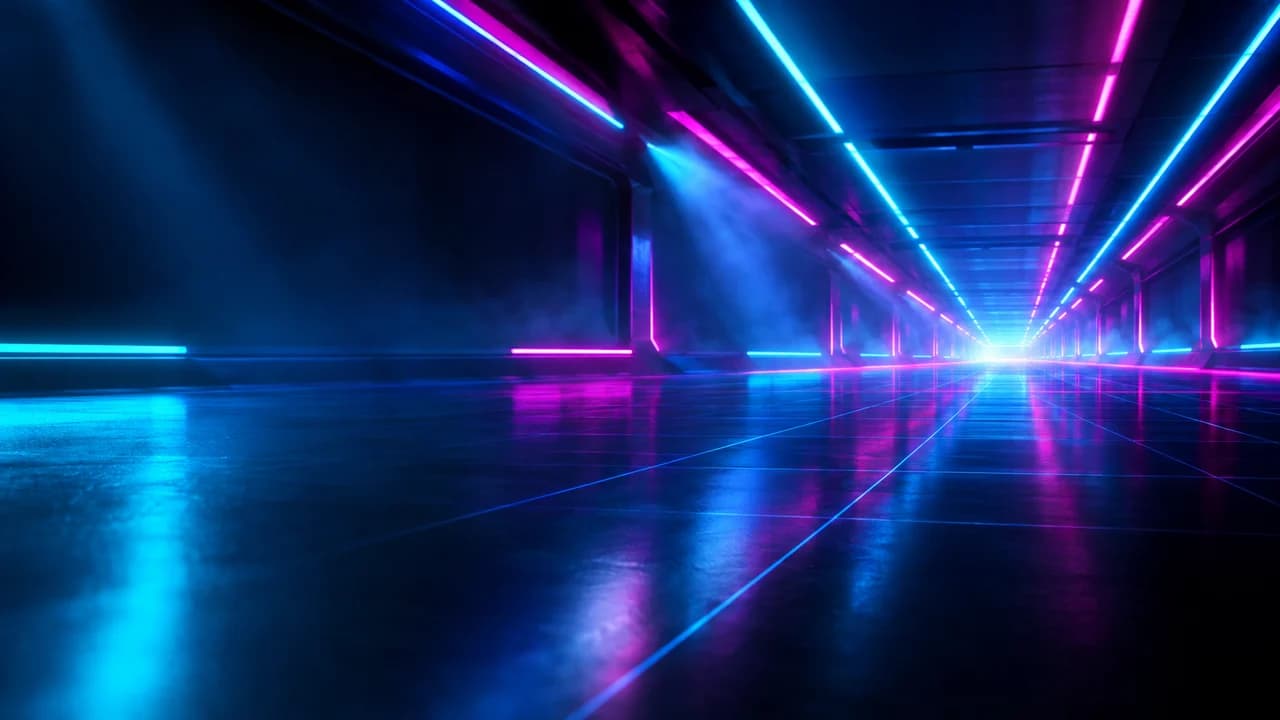
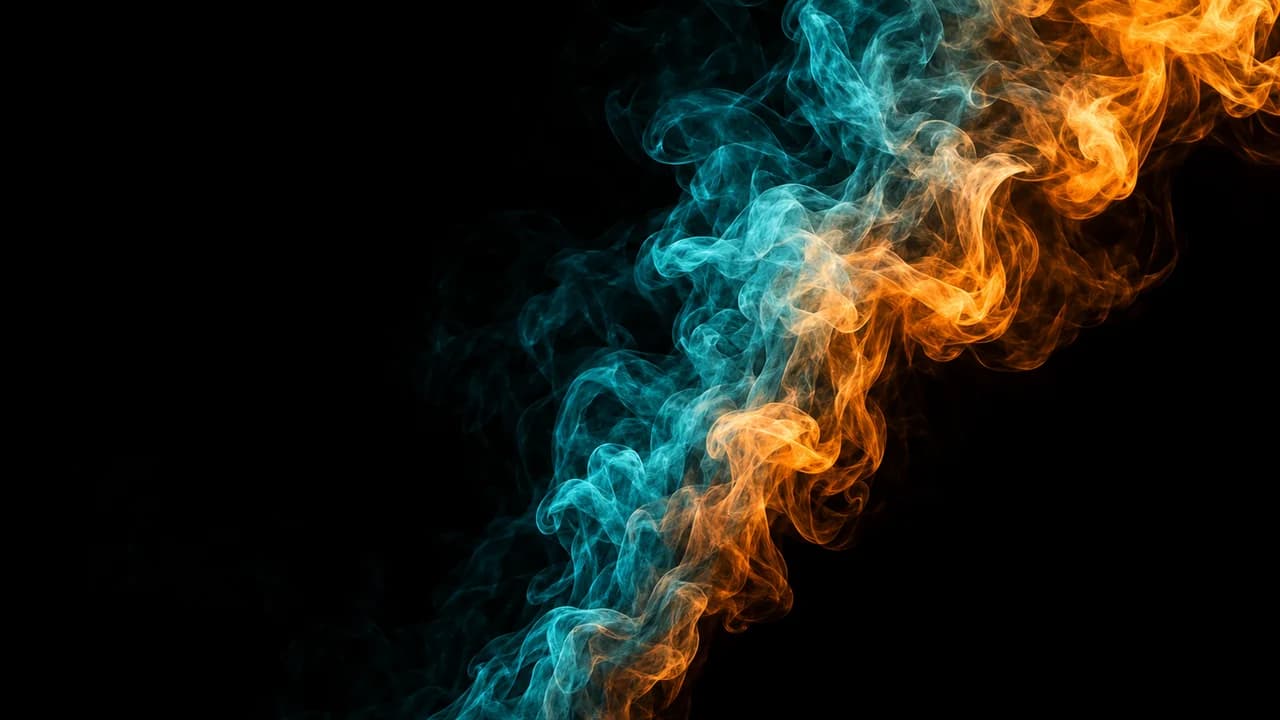
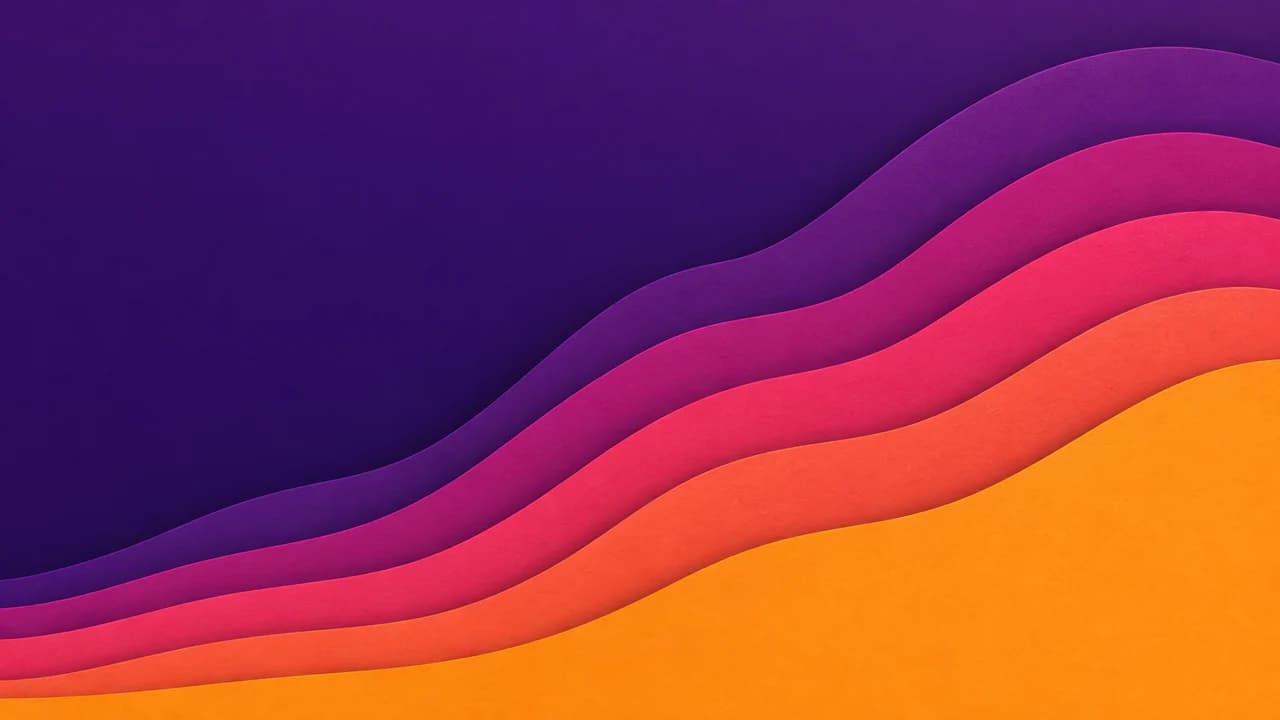
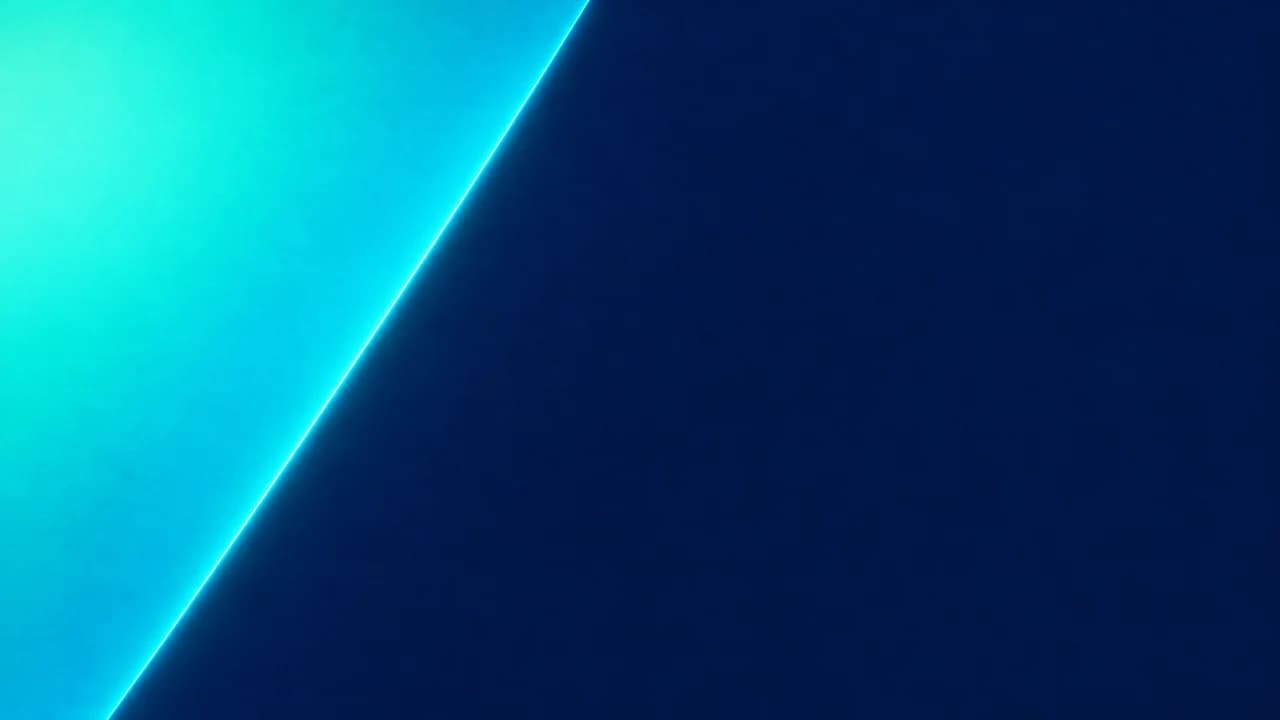
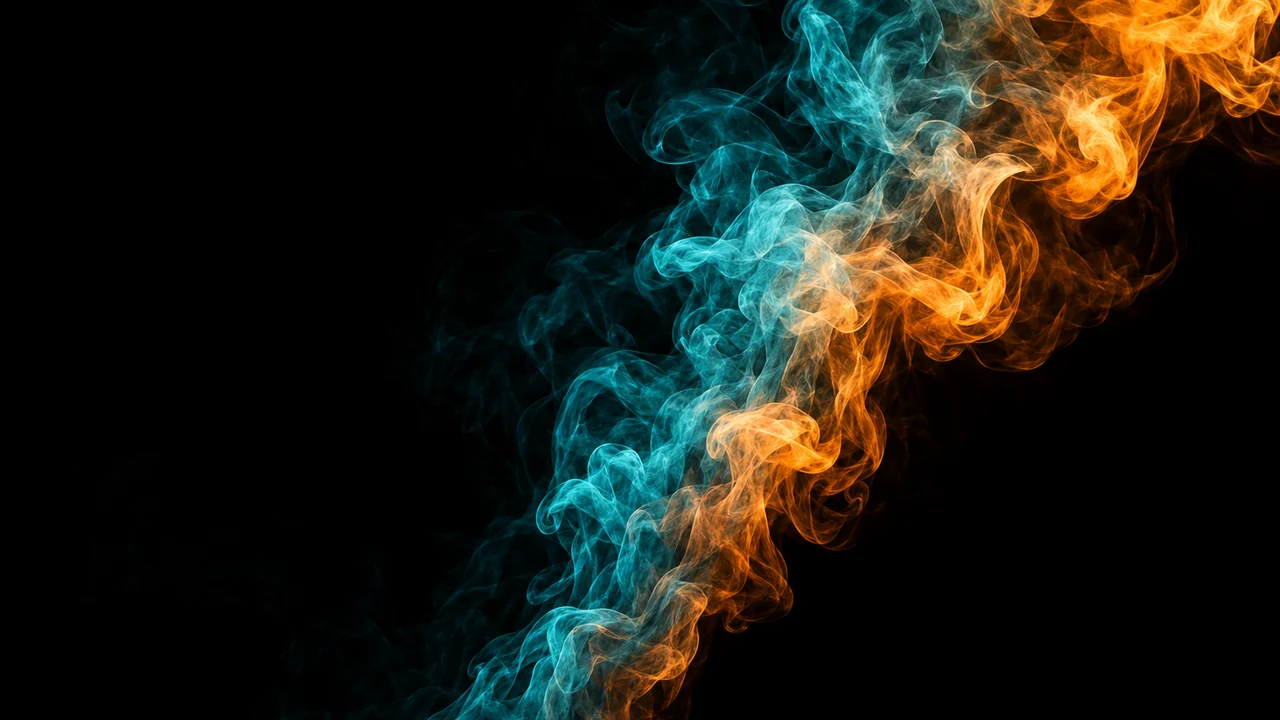
- Anything else: a plain gradient in your channel colours.
If you post often, reuse one or two backgrounds. Your videos then look like a set in a feed, and regular viewers spot them faster.
Keep it simple
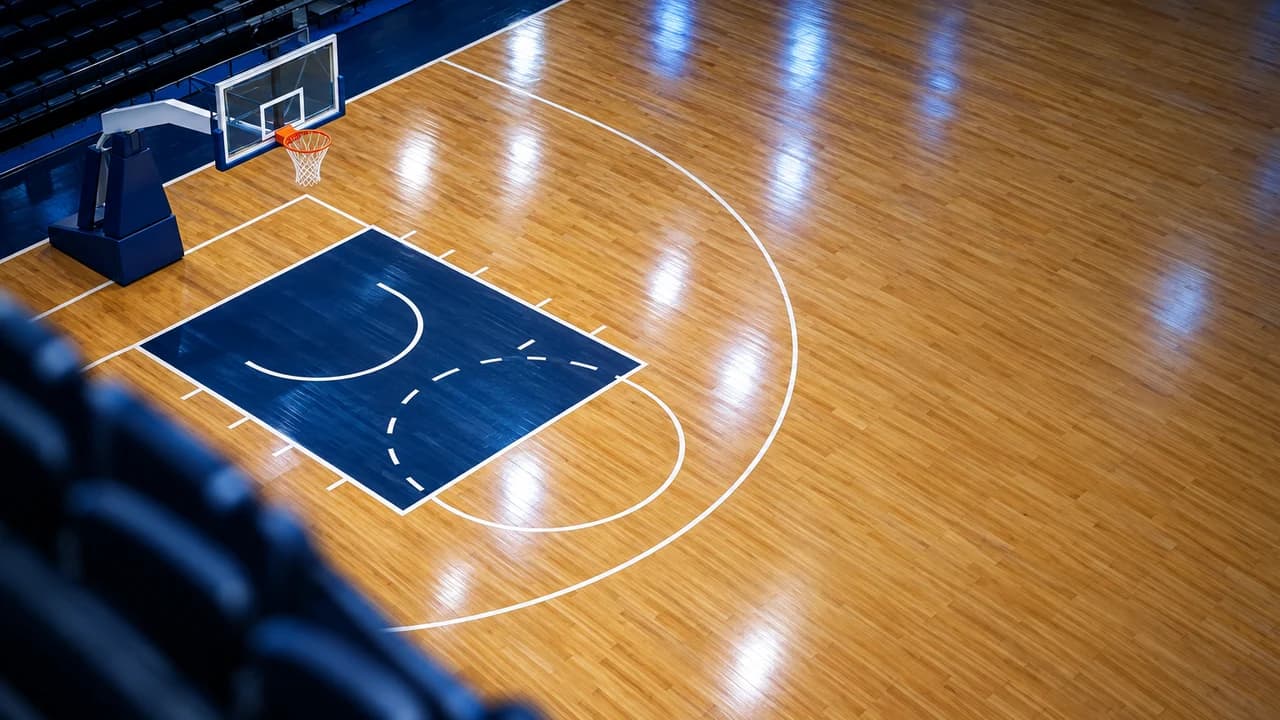
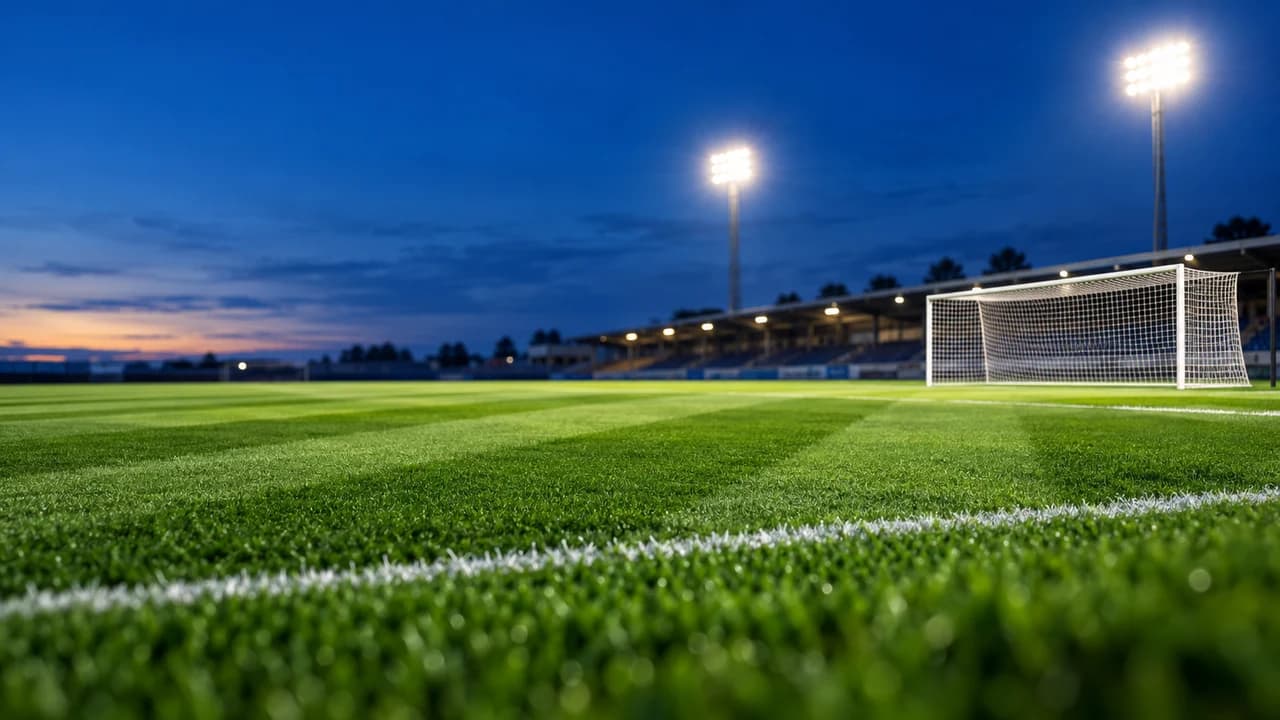
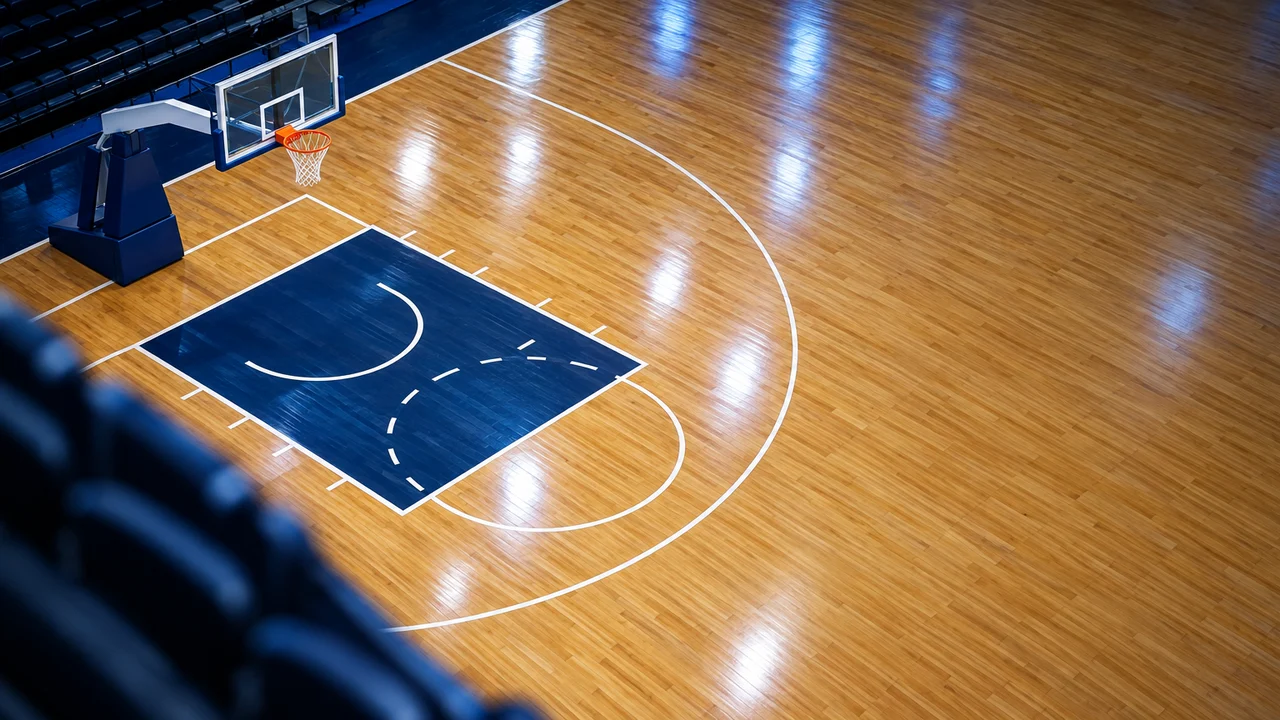
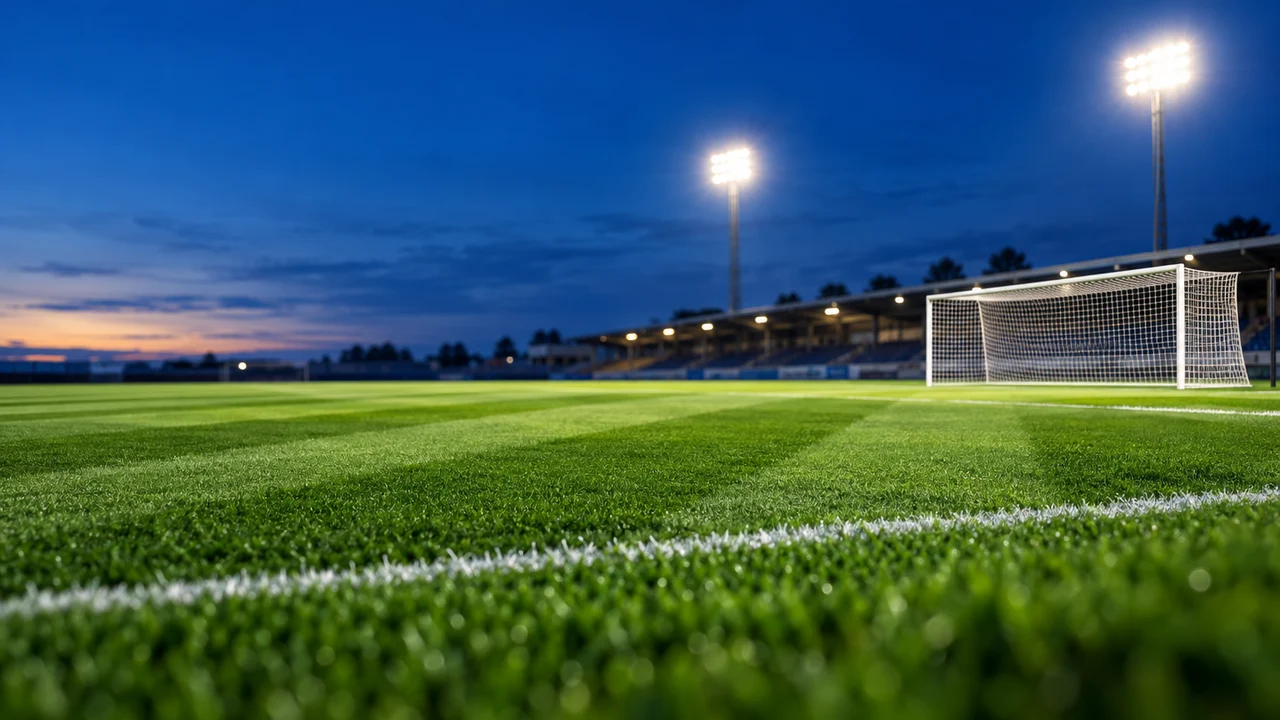
The background is the stage, not the show. Your face or main object and a few words are what people should see first. Every extra detail behind them competes for attention. In the up-next list on a computer, a thumbnail is only 248 pixels wide, and small details turn into noise at that size. That is why these backgrounds keep their detail on one side and leave the other side plain.
A quick test: step back from the screen and squint at your thumbnail. If your face and your title are still the first things you notice, the background is doing its job. If your eye goes to the background first, pick a calmer one or blur it.
Blur or darken what sits behind your subject
If the area behind your face is busy, it fights your face. Two quick fixes work in any editor. Blur the background layer a little, so your subject is the only sharp thing. Or darken it, with a dark layer at low opacity or a vignette around the edges. Both make the subject look closer to the viewer. Apply them to the background layer only, never to your face or your text.
Make the text contrast with the background
Text is read through contrast, not colour. Use light text on a dark background and dark text on a light one. On the bright backgrounds here, use dark text, or white text with a thick dark outline. On the dark ones, white or a strong yellow works well. If a word lands on a busy part of the image, put a solid shape or a shadow behind it instead of making the text bigger. Our YouTube thumbnail fonts guide covers which typefaces stay readable when the thumbnail is small.
Leave space for the subject, the title and the video length
Each background on this page keeps one third of the frame calm, on the left or the right. The card tells you which side. Put your face or main object there, with your title next to it. Keep the bottom-right corner empty: YouTube places the video length on top of it. Our YouTube thumbnail size guide shows how much room to leave and which size to export.
How to swap the background of your own thumbnail
If you already have a thumbnail and want a new background behind it:
- Download a background from this page.
- Cut out your subject with the background remover in your editor. Work from the original photo, not the finished thumbnail, so the edges stay clean.
- Open the background (1280 × 720, 16:9) and place the cut-out on the calm side. Make it large: head and shoulders usually read better than a full body.
- Match the light. If the background is warm, warm the subject a little. Add a soft shadow or a thin light outline so the edges do not look pasted on.
- Add your title on the calm side, and keep the bottom-right corner clear.
- Export as JPG or PNG, then check it at real size with the YouTube thumbnail preview tool before you upload.
Want ideas for the full thumbnail first? Browse our thumbnail ideas by game and video type.