Top 12 Budget-Friendly Color Grading Tools for 2025
Remember when color grading meant big studio budgets? Now it’s a few clicks away—if you’re willing to learn by fire. After dozens of late-night renders chasing that ideal teal and orange, I’ve rounded up 12 free and wallet-friendly grading tools that actually work on client gigs, YouTube Shorts, and branded reels. Let’s roll.
But first—whether you’re brand new to post-production or just tightening your pipeline—let’s clear up the one question that trips up almost everyone.
What Is Color Grading vs Color Correction?
Color correction is the clinical part. You’re fixing white balance, adjusting exposure, and making sure your footage looks natural and consistent shot to shot. Think of it as the dental cleaning—necessary, unglamorous, and nobody notices unless you skip it.
Color grading is the creative layer on top. It’s where you push teal into the shadows, warm up skin tones, or slap a filmic look across your timeline that says “I meant to do that.” Correction makes your footage accurate. Grading makes it yours. Most of the tools below handle both, but knowing which step you’re on saves hours of going in circles. Always correct first, grade second.
The 12 Best Free and Affordable Color Grading Tools
1. DaVinci Resolve (Free & Studio)
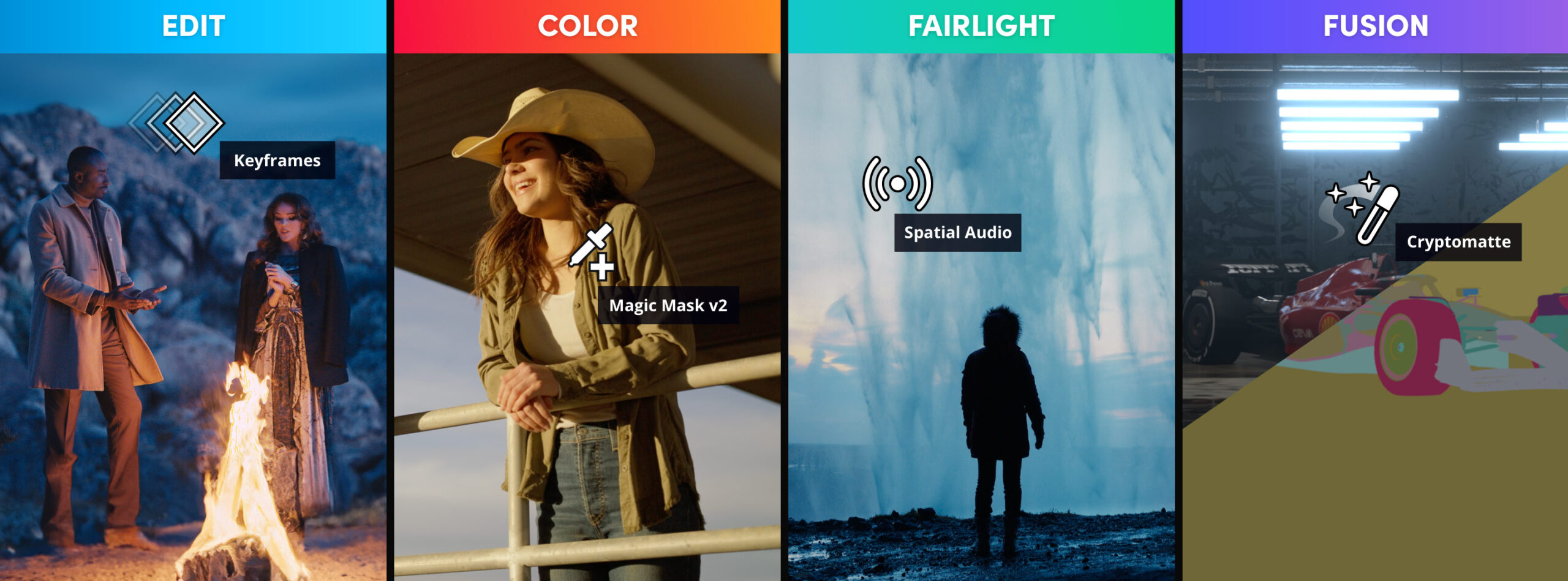
Trading Premiere for Resolve feels like swapping a tricycle for a spaceship. Node-based workflows, precision curves, LUT support, facial recognition and Blackmagic’s free training make it the pro standard at zero cost.
The Color page alone justifies the install—color wheels, curves, qualifier selections, power windows—tools that would cost hundreds elsewhere. The node graph lets you stack corrections non-destructively, so your creative grade sits cleanly on top of your technical fix. The free version skips HDR Dolby Vision and Neural Engine features like Magic Mask (Studio is $295 one-time), but for 90% of YouTube and social content, the free tier is overkill in the best way. Best for anyone willing to invest a weekend learning nodes.
Pro Tip: Hit up Blackmagic’s official tutorials to master HDR grading and multi-cam matching in record time.
2. CapCut
Once “too TikTok” for me, CapCut now rules my mobile and desktop edits. One-tap LUTs, manual color controls, cloud sync and rapid updates let you polish quick stories and reels between coffee breaks.
The desktop version quietly became a serious editor. HSL adjustments, tone curves, and a keyframe system for animated grades. The AI-powered filters are surprisingly tasteful—less “Instagram 2012” and more “I hired a colorist.” Cloud sync lets you rough-cut on your phone and fine-tune on desktop. Export quality on the free tier can be inconsistent, but for short-form creators who need speed over pixel-level control, nothing beats it.
Workflow Tip: Build a custom preset from your best-graded clip and apply it as a starting point to every new project. CapCut saves presets across devices.
3. Adobe Premiere Rush
If you’re deep in the Adobe ecosystem, Rush’s Auto Color cleans up about 80% of your clips instantly. Seamless cloud syncing and broadcast-safe presets keep your edits tight across desktop and mobile.
Rush isn’t trying to be Premiere Pro—it’s trying to be fast. Exposure, contrast, highlights, shadows, vibrance, and curated looks. A full color pass on a 3-minute vlog takes five minutes. The downside: subscription cost if you’re not already on Creative Cloud, and power users will hit the ceiling fast—no curves, no wheels, no scopes. Best for Adobe subscribers who want quick mobile-to-desktop edits.
4. VSDC Free Video Editor
On a crusty Windows laptop, VSDC’s RGB curves, LUT imports, masking and chroma-key tools rescued me from Movie Maker purgatory. The interface is retro, but the community LUT swaps are pure gold for moody docs.
VSDC punches above its weight for a free Windows-only editor. Lift/gamma/gain wheels, color scopes, and split-toning controls that most free tools skip. It runs on CPU rather than GPU—great on older hardware, limiting on newer projects. The UI takes getting used to, but once you map your shortcuts it’s a workhorse. Best for Windows users on older machines who need real grading tools at zero cost.
5. Lightworks (Free & Pro)
My first editing crush, Lightworks still delivers real-time scopes, broadcast-safe grading tools and GPU acceleration. The free version caps exports at 720p, but it nails your look before you decide if Pro is worth it.
Lightworks has Hollywood pedigree—it cut “The Wolf of Wall Street” and “Pulp Fiction.” Vectorscope, waveform, histogram, and a grading panel built around broadcast standards. If you’re learning scopes for the first time, Lightworks makes them approachable. The 720p cap is irrelevant for learning; for client delivery, Pro is $9.99/month. Best for beginners who want scope-based grading in a professional environment.
6. HitFilm Express
After wrestling with After Effects, HitFilm’s free color wheels, curves, LUTs and built-in VFX felt like a warm hug. Just watch your RAM when stacking multiple effects.
HitFilm’s killer combo is editing plus compositing in one app. Three-way color wheels, hue/saturation curves, and solid LUT imports. The VFX integration means your grade plays nicely with motion graphics—no round-tripping. RAM management is the Achilles’ heel though. Close background apps and work in proxy mode for complex timelines. Best for creators who blend VFX and color grading in the same project.

7. iMovie
Don’t sleep on iMovie. Its Auto Color and intuitive sliders crank out polished family clips and branded bangers on Mac in minutes. It’s shallow but lightning-fast when you need speed over depth.
iMovie does one thing brilliantly: it gets out of your way. Brightness, contrast, saturation, color temperature, and a handful of cinematic filters. No curves or color wheels—and that’s the point. For quick turnaround content where “looks good” beats “looks graded,” iMovie wins on time-to-export. If you shoot on iPhone, the integration is seamless. AirDrop, grade, export. Five minutes. Best for Mac and iPhone users who prioritize speed over creative control.
8. Cinema Grade
Point-and-click grading inside Premiere, Final Cut or Resolve. Live previews, scene presets and a Match tool for multi-cam shoots make it a workflow booster once you’ve outgrown the basics.
Cinema Grade’s trick is visual grading—click on the part of the image you want to adjust (sky, skin, shadows) and drag. No hunting for the right node or wheel. The scene-matching feature saves time on interview shoots where lighting shifts between setups. At $99 one-time it’s the priciest here, but it pays for itself on the first multi-cam project. Best for intermediate editors who want faster results inside their existing NLE.
9. Color Grading Central LUT Gallery
This curated LUT shop lets you test film-style presets on your own footage before you buy. Free sample packs and NLE integration saved me hours on a moody short.
The try-before-you-buy model sets CGC apart from the dozens of random LUT packs online. Upload a still from your project, preview the LUT applied, and decide if it fits. The free packs—especially the film emulation ones—are genuinely usable, not watered-down teasers. Apply one, dial back intensity to 60-70%, and tweak from there. Best for creators who want a cinematic starting point without building looks from scratch.
10. OpenColorIO (OCIO)
The backstage hero for color consistency in 3D, VFX and live-action. My Blender and Nuke projects fall apart without it. Open-source, rock-solid and a must if you despise color chaos.
OCIO isn’t an editor—it’s a color management framework. It ensures what you see in Blender matches what comes out of Nuke matches what lands in Resolve. For multi-app pipelines, that consistency is non-negotiable. Setup takes effort—config files, display transforms, possibly cursing at YAML syntax—but once running, your pipeline stays color-accurate end to end. Best for VFX artists working across multiple applications.
11. Blender Video Sequence Editor (VSE)
Blender’s VSE brings node-based grading into the open-source world. Link your animation or comp directly and tweak curves without hopping between apps. The community docs are a big plus.
If you’re already in Blender for 3D, the VSE keeps everything under one roof. Color balance and curves modifiers work well, and the compositor’s node system handles complex grades that would need plugins elsewhere. Playback can chug on heavy timelines, but for animation and VFX projects where grading is part of compositing, it eliminates unnecessary exports. Best for Blender users who want to grade without leaving the ecosystem.
12. Olive Video Editor
Still in alpha but already packing real-time grading in a clean interface. Discord-driven LUT experiments, frequent updates and a sleek design make Olive perfect for early adopters hungry for fresh features.
Olive feels like what a modern open-source NLE should be: fast, clean, focused. Curves, color balance, and LUT support are already in place, and the real-time playback is impressive for alpha software. The risk: alpha means crashes and breaking changes. Don’t use it for client work yet, but keep it installed and watch it grow. Best for tinkerers and open-source advocates.
Comparison Table
| Tool | Price | Platform | Best For | Learning Curve |
|---|---|---|---|---|
| DaVinci Resolve | Free / $295 Studio | Win, Mac, Linux | Serious grading at any level | Steep |
| CapCut | Free / Pro plans | Win, Mac, iOS, Android | Short-form social content | Easy |
| Premiere Rush | Free / $9.99/mo | Win, Mac, iOS, Android | Quick edits in Adobe ecosystem | Easy |
| VSDC | Free / $19.99 Pro | Windows | Budget Windows editing | Medium |
| Lightworks | Free / $9.99/mo | Win, Mac, Linux | Learning broadcast-grade tools | Medium |
| HitFilm | Free / paid add-ons | Win, Mac | VFX + color in one app | Medium |
| iMovie | Free | Mac, iOS | Fast Mac/iPhone edits | Easy |
| Cinema Grade | $99 one-time | Win, Mac (plugin) | Visual grading in your NLE | Easy |
| CGC LUT Gallery | Free samples / paid packs | Any NLE | Quick cinematic looks | Easy |
| OpenColorIO | Free (open-source) | Win, Mac, Linux | Multi-app color consistency | Steep |
| Blender VSE | Free (open-source) | Win, Mac, Linux | 3D/VFX pipeline grading | Steep |
| Olive | Free (open-source) | Win, Mac, Linux | Early adopters, tinkerers | Medium |
Honorable Mentions
- Shotcut: Open-source editing with steadily improving color controls.
- Kdenlive: Linux favorite that now wins hearts on Mac and Windows.
- Avid Media Composer | First: Free Avid workflow for broadcast-safe grades.
How to Choose the Right Tool
With twelve solid options, the “best” tool depends on your situation, not a review score. Here’s how I’d narrow it down.
Budget: Spending zero? Resolve is the answer for dedicated grading. CapCut or iMovie if you want editing and grading in one fast package. VSDC if you’re locked to Windows.
Platform: Mac users get iMovie free and Resolve runs beautifully on Apple Silicon. Windows users should look at VSDC or Resolve. Linux users—Resolve, Blender, or Kdenlive are your real options, and Resolve is the clear winner.
Use case: Pumping out daily social clips? CapCut or Rush. Working on a short film? Resolve, no question. Running a multi-app VFX pipeline? OCIO plus Blender and Resolve. Just need a quick look? Grab a LUT pack from CGC and drop it into whatever you already use.
Learning investment: Willing to spend a weekend learning? Resolve pays dividends for years. Need results in 30 minutes? iMovie or CapCut won’t let you down.
Shoestring Grading Workflow: Step by Step
Here’s the exact workflow I use on budget projects. It works in Resolve, CapCut, or any tool on this list with basic color controls.
Step 1: Pick Your Platform
- Platform Pick: Resolve or CapCut for most jobs; iMovie for Mac emergencies.
Match the tool to the job. A 15-second reel doesn’t need Resolve’s node graph. A 10-minute documentary doesn’t belong in CapCut. Be honest about scope before you open anything.
Step 2: Shoot Flat or Log
- Shoot Flat/Log: The biggest hack for dynamic grading flexibility.
If your camera supports it, shoot in a flat or log profile. This preserves highlight and shadow detail you can pull back in post. On iPhone, use Blackmagic Camera or Filmic Pro to unlock log recording. On dedicated cameras, enable S-Log, V-Log, or C-Log. Flat footage looks washed out on set—that’s the point. All the contrast and color come from your grade.
Step 3: Correct First
- First Pass: Dial exposure, contrast and white balance—trust your scopes over your eyeballs.
Set your white balance using a neutral reference point, bring exposure into range (keep skin tones around 70 IRE on the waveform for standard dynamic range), and set contrast. In Resolve, use the primary wheels on a dedicated correction node. In CapCut, use the manual Adjust panel. Don’t touch creative color until this step is clean.
Step 4: Apply Your Creative Look
- Quick Looks: Lean on free LUT packs or whip up a custom preset fast.
Now you grade. Apply a LUT at 60-80% intensity as a starting point, or build a look manually. Push color into the shadows (teal and blue are popular for a reason), warm up highlights, and adjust saturation by hue—pulling orange saturation slightly boosts skin tones without making the whole frame glow. Save this as a preset.
Step 5: Match Your Shots
- Shot Matching: Resolve and Cinema Grade shine when you need multi-cam consistency.
Grab your best-graded shot as the reference. In Resolve, use Shot Match or the still store to compare. In Cinema Grade, the Match tool does this visually. The goal is consistency—viewers notice when one shot is warm and the next is cold, even if they can’t articulate why.
Step 6: Export Smart
- Export Check: Mind free-tier limits—Lightworks’ 720p cap taught me to always double-check.
Check export settings against delivery specs. YouTube wants H.264 or H.265 at 1080p minimum. Instagram compresses aggressively, so export at higher bitrates than you think you need. In Resolve, aim for 20-30 Mbps for 1080p YouTube uploads.
Step 7: Save Everything
- Save Presets: Your future self will thank you for reusable grade settings.
Export your LUTs, save your node trees, archive your presets. Six months from now, a client will ask for “that look from the last project” and you’ll have it ready in seconds instead of rebuilding from memory.
Frequently Asked Questions
Is DaVinci Resolve really free?
Yes, genuinely free—not a trial, not a demo. Blackmagic makes money selling cameras and hardware; Resolve is the gateway. The free version includes the full Color page, Fairlight audio, Fusion compositing, and editing. Studio ($295 one-time) adds HDR tools, Neural Engine AI, and multi-GPU support. For most creators, free is more than enough.
Can I color grade on a phone?
Absolutely. CapCut and Premiere Rush both run on iOS and Android with functional color tools—HSL adjustments and curves that didn’t exist on mobile two years ago. The limitation is screen accuracy: phone displays are bright and oversaturated, so your grade might look different on a calibrated monitor. Grade on mobile for speed, but spot-check on a proper screen before final delivery.
What’s the easiest color grading software for beginners?
iMovie if you’re on Mac—it’s literally designed so you can’t mess it up. CapCut if you want more control without a learning cliff. Both get you from raw footage to graded export in under 10 minutes. Once you’re comfortable with basic adjustments, move to DaVinci Resolve. The jump feels big, but Blackmagic’s free training videos walk you through everything step by step.
Do I need a calibrated monitor?
For client work, yes. For YouTube and social content, probably not—but it helps more than you’d think. An uncalibrated monitor displays colors warmer or cooler than reality, so your “perfect” grade looks off to everyone else. A Datacolor SpyderX ($150) paired with a decent IPS monitor gets you 90% there. If that’s out of budget, turn off “vivid” or “gaming” display modes and view exports on multiple screens before publishing.
Final Thoughts
Color grading isn’t an exclusive playground anymore. Whether you’re polishing indie shorts, bootstrapped YouTube channels or viral TikToks, these tools and workflows will make your footage pop without draining your wallet. Now go get chromatic.